User guide
Everything in the app, and what to do in it
This is the user guide for the dealership app. It covers every screen, every button and every setting, in the order you meet them, with pictures of the app as it looks on a desktop and on a phone.
What the app does
How work arrives, who handles it, and where a person comes in.
Leads arrive two ways. Your lead sources email each one to your intake address, or a customer texts your number directly. Either way the conversation appears in the app and the AI replies, usually within a minute, at any hour.
The AI reads your synced inventory, so it answers about cars you have in stock, at the listed price. It works toward booking a visit. If the customer goes quiet it decides, for that one person, when the next message should go and what it should do, and keeps doing that until they reply, book, or ask it to stop.
The split. Anything red on a screen is work for a person. Everything else is the AI working. You can take over any conversation at any time.
The four moments a person is needed
| Moment | What you see | What you do |
|---|---|---|
| Customer asks for a real person | The thread turns red and says Needs you. The team is paged. The AI keeps answering questions in the meantime. | Claim it and reply, or call them. |
| A visit gets booked | The lead shows up as claimable with a booked visit on it. | Claim it so the customer has a name to ask for. |
| The AI cannot answer, or needs something from the store | It flags the thread and writes the reason, or asks for photos, a video, a document, or a call. | Answer the question yourself, or send what it asked for. Then hand it back. |
| A visit has come and gone | The thread asks How did the visit go?, and so does a link on your phone. | Tap Sold, Came in, No-show, or Rescheduled. The AI writes the matching follow-up. |
What the AI never does
- Quote a monthly payment, an interest rate, taxes, fees, a trade value, or an out-the-door price. It quotes the listed price of a car and nothing else.
- Invent a promotion, a discount, or a warranty term.
- Keep messaging someone who asked to stop.
- Message while a rep is running the thread.
- Reach out first outside your contact hours, or more than the store allows in a day. Replies to a customer who just messaged go out at any hour.
Test mode. A store in test mode shows an amber strip above the inbox: every text and email is rerouted to the tester's phone instead of the customer. Staff alerts still go to real staff phones, with [TEST] in front. Nothing reaches a customer until the store is switched to live.
Who sees what
Three roles at the dealership, plus platform staff. Your role decides which items are in your sidebar.
| Role | Can open | Cannot |
|---|---|---|
| Salesperson | Today, Conversations, Customers, Appointments | No Inventory, Pipeline, Reports or Settings. Unclaimed leads show as locked cards with no customer details until claimed. |
| Manager | Everything a salesperson can, plus Inventory, Pipeline and Reports | No Settings. Can reassign leads and close them as Sold or Lost. |
| Dealer admin | Everything, including Settings and the team roster | Cannot change platform-owned things: the texting number, going live, billing. |
| Platform staff | The control plane: every dealership, economics, staff. Can open any dealer workspace as support. |
Permissions are enforced on the server, not by hiding buttons. A salesperson who opens a link to an unclaimed lead gets a screen with no customer name or number on it, because those details were never sent to their browser.
Getting in
First time, every time after, and the screens that can block you.
Your first sign-in
- Your admin invites you. An email arrives from your store "via Sales Assist AI". The subject names who invited you and to which store.
- The email states the store, your role, and the address the invite is for, with one button, Set your password. Under the button the same temporary code is printed as text, in case the button does not work in your mail app.
- Open the link. It lands on Set your password. Type a password and confirm it. The checklist under the box goes green as you satisfy each rule.
- Press Save & continue. You are in, on the Today screen.
If you type the temporary code into the normal sign-in form instead, the app opens the set-password screen for you. Nothing is lost.
Signing in after that
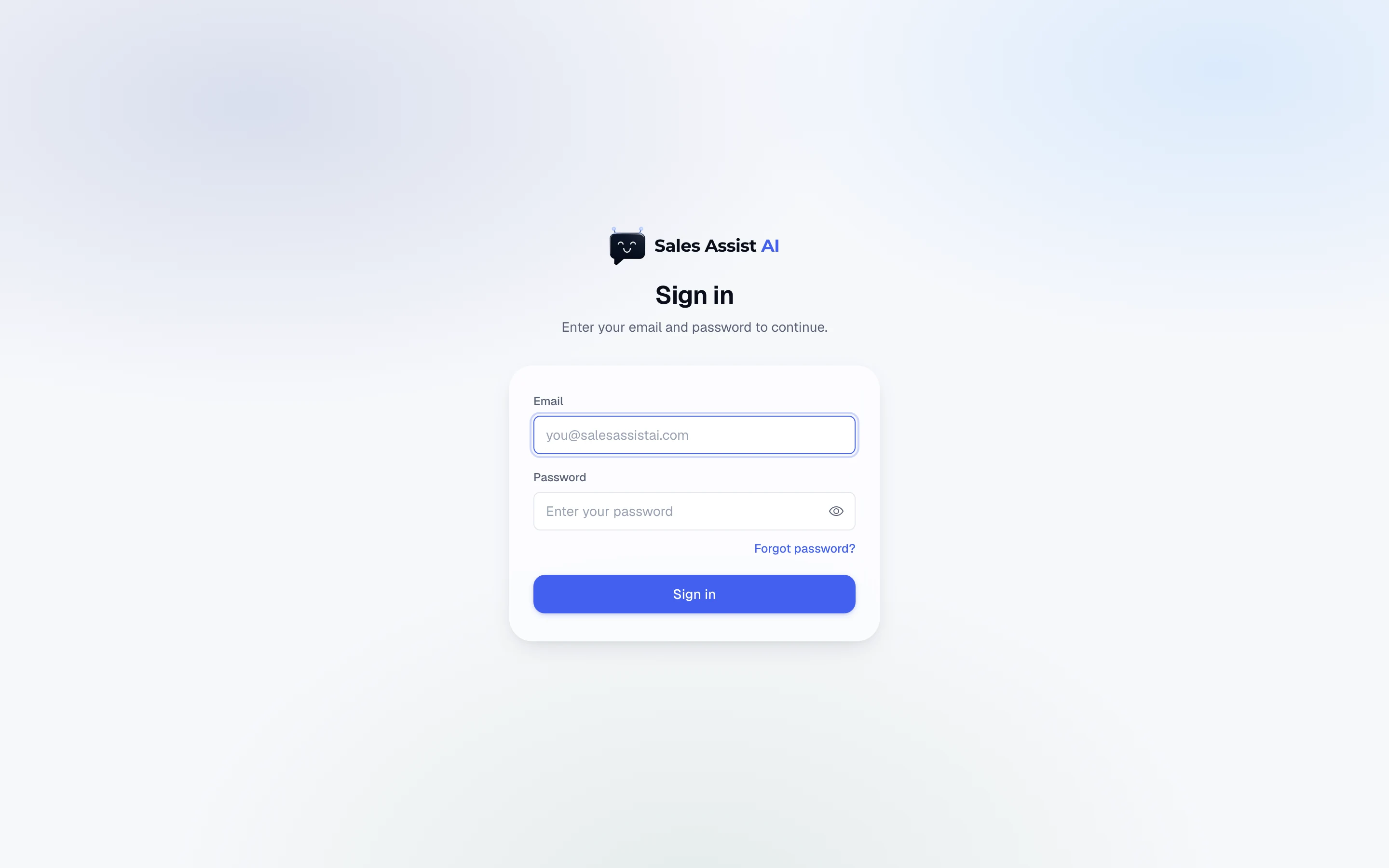
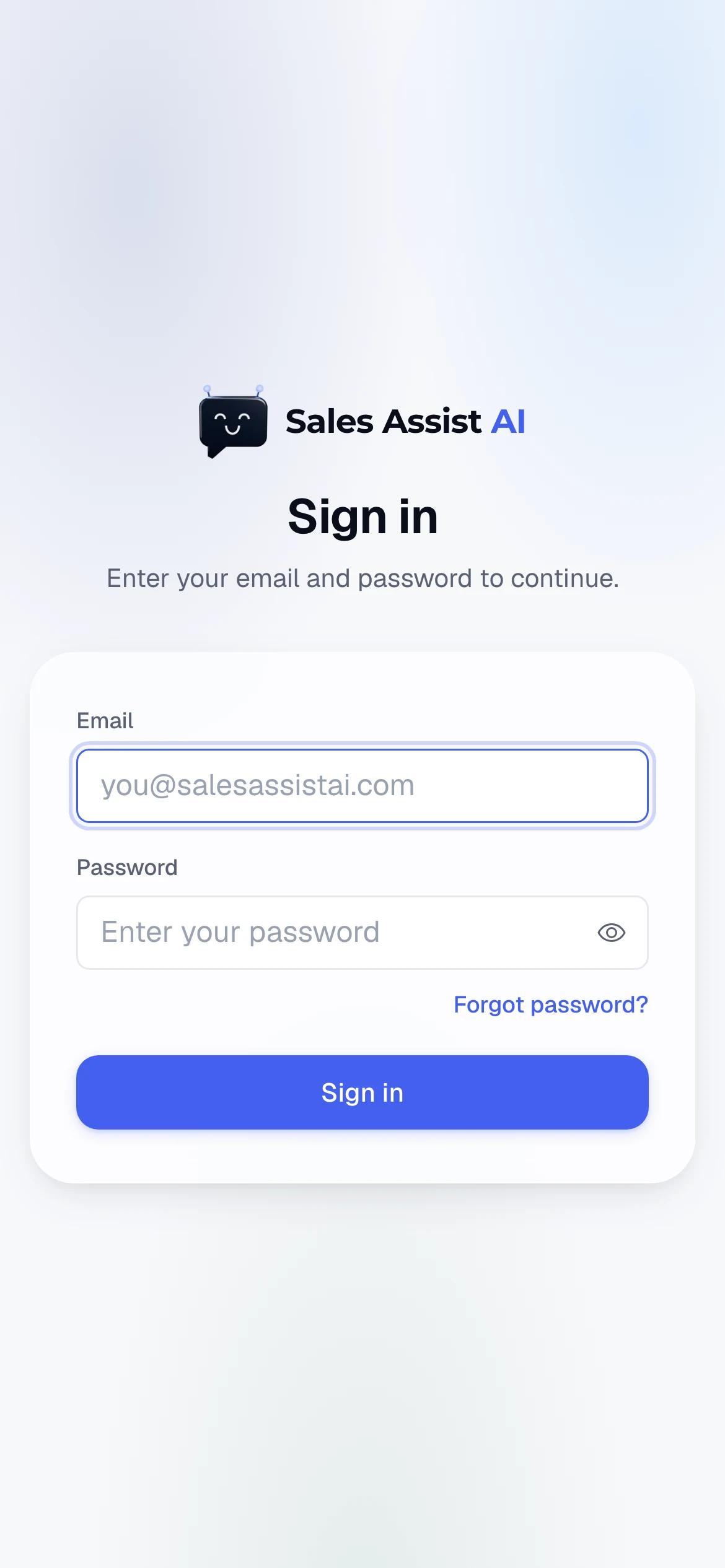
- Email and password on the sign-in card.
- If two-factor is on for your account, a second screen asks for the 6-digit code from your authenticator app.
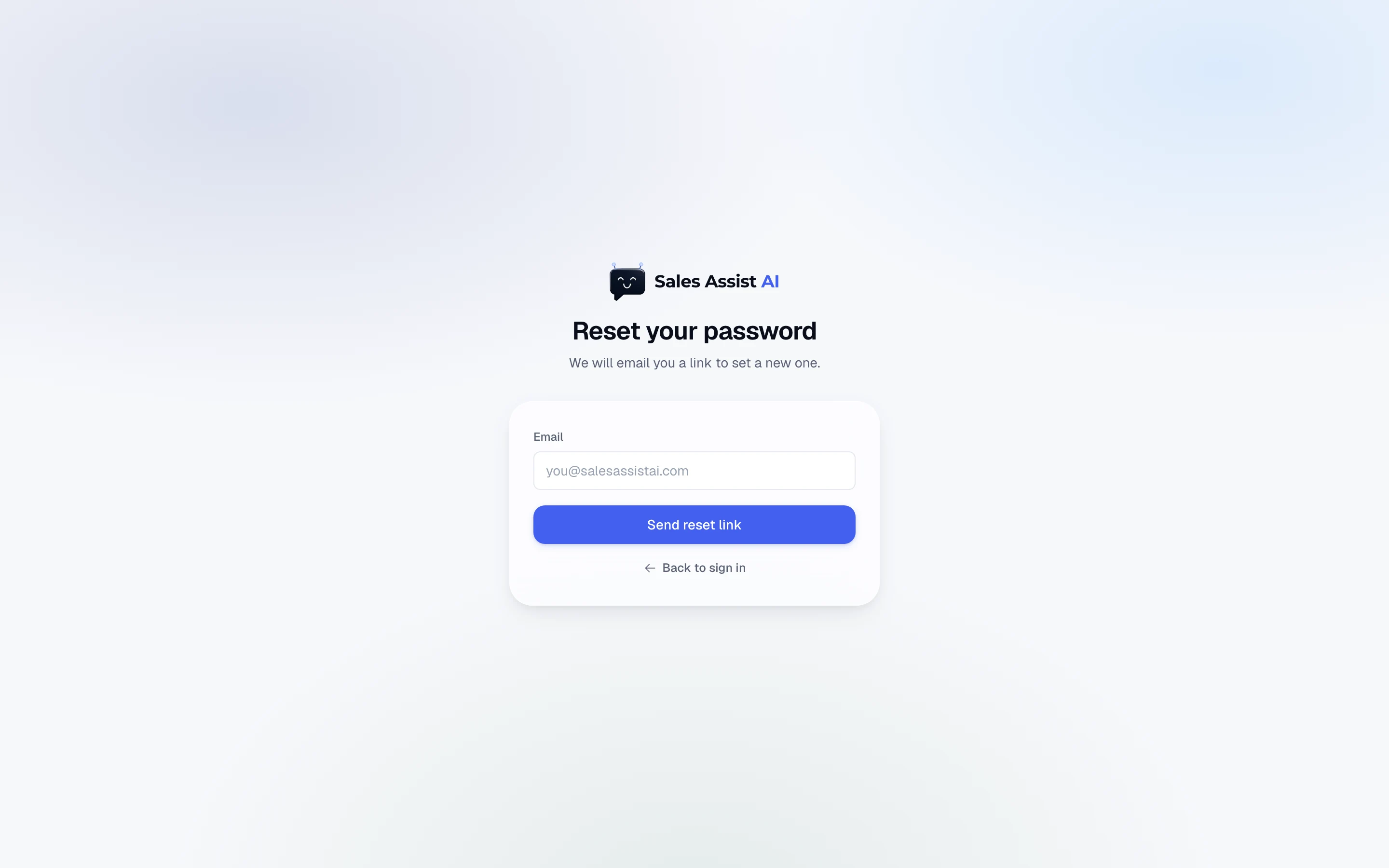
- Forgot it? Press Forgot password?, enter your email, and a reset link arrives. The link is good for one hour.
Screens that mean you are blocked
| Screen | What it means | Way out |
|---|---|---|
| This account is paused | The whole dealership is switched off. The AI is not messaging anyone. | Email support. Only the platform can turn it back on. |
| Your access is turned off | Your login works, but your membership was paused or removed. | Ask your dealer admin to resume or re-invite you. |
| Your subscription is unpaid | Billing lapsed. The AI has stopped messaging customers and the team cannot sign in. Only the dealer admin gets this screen. | Settle the invoice. Everything picks back up on its own. |
Around the screen
The parts of the screen that do not change.
The sidebar on a desktop
Left side, grouped into four headings.
| Group | Items |
|---|---|
| Overview | Today |
| AI at work | Conversations, Customers, Appointments, Inventory |
| Manage | Pipeline, Reports |
| Configure | Settings |
At the bottom: your initials and email, and the bell. Clicking your email opens a menu with Account settings and Sign out.
The tab bar on a phone
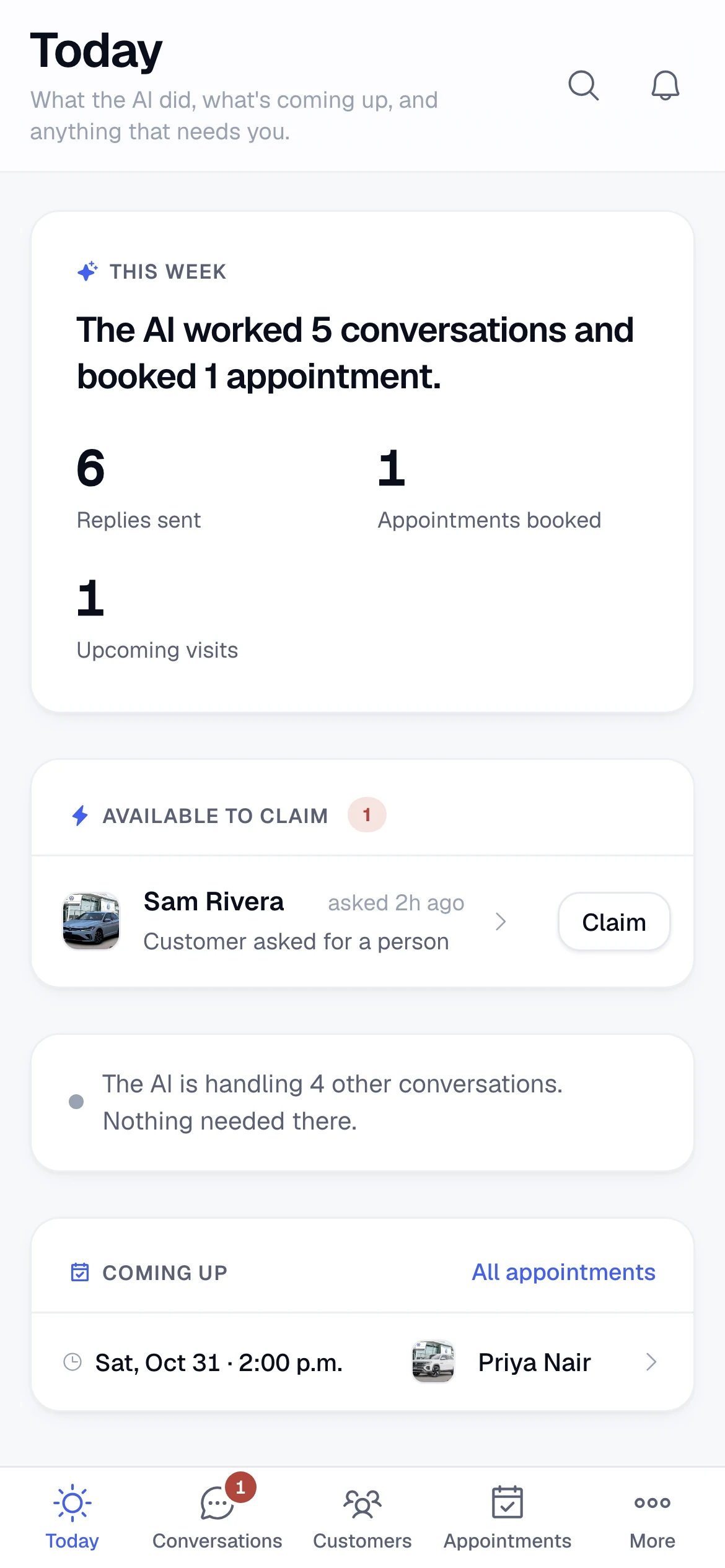
On a phone the sidebar becomes a tab bar along the bottom: Today, Conversations, Customers, Appointments, and More. The search and the bell sit at the top right of every screen.
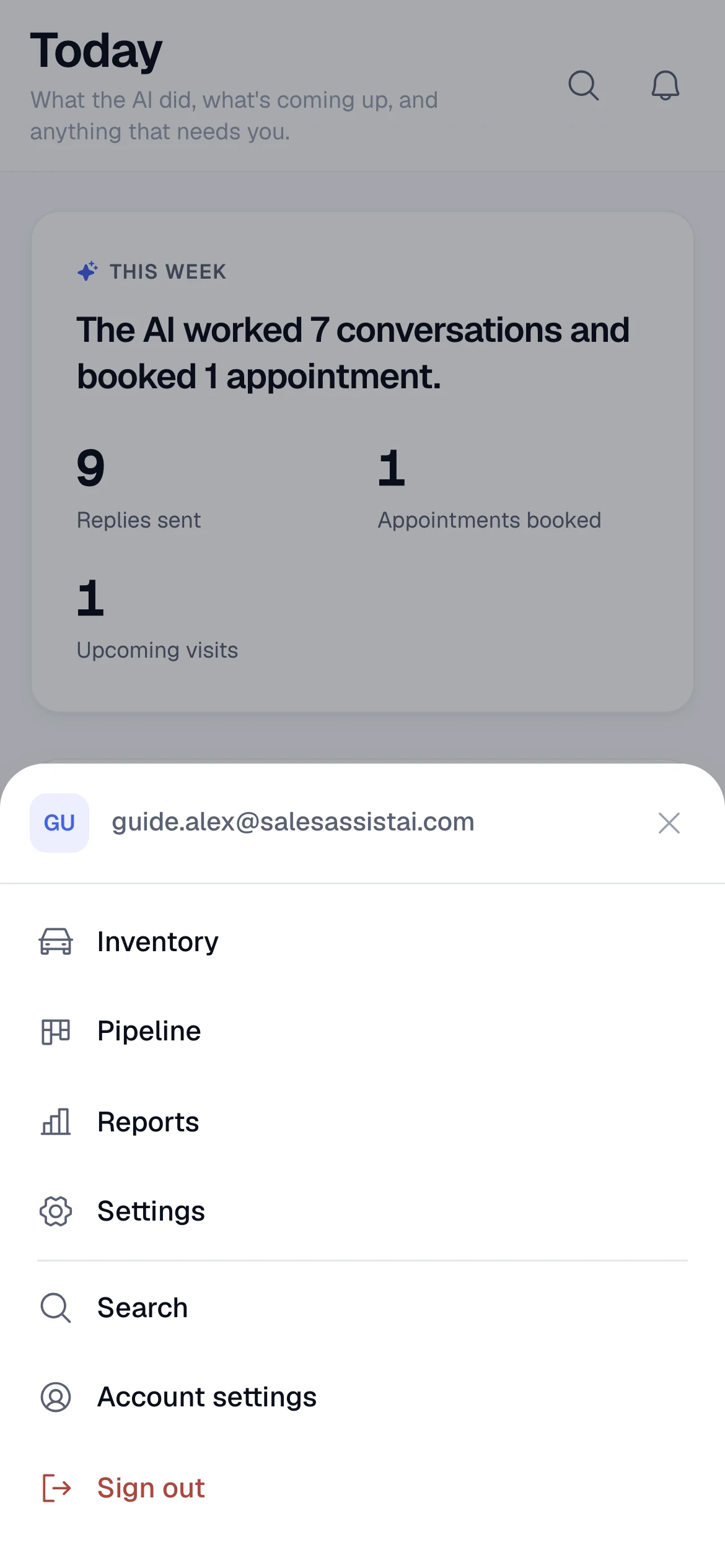
One red number in the whole app. The badge on Conversations counts threads at this store that need a person and that you personally can act on: unclaimed ones, or ones you own. A lead another rep claimed never puts a red number on your screen.
Search
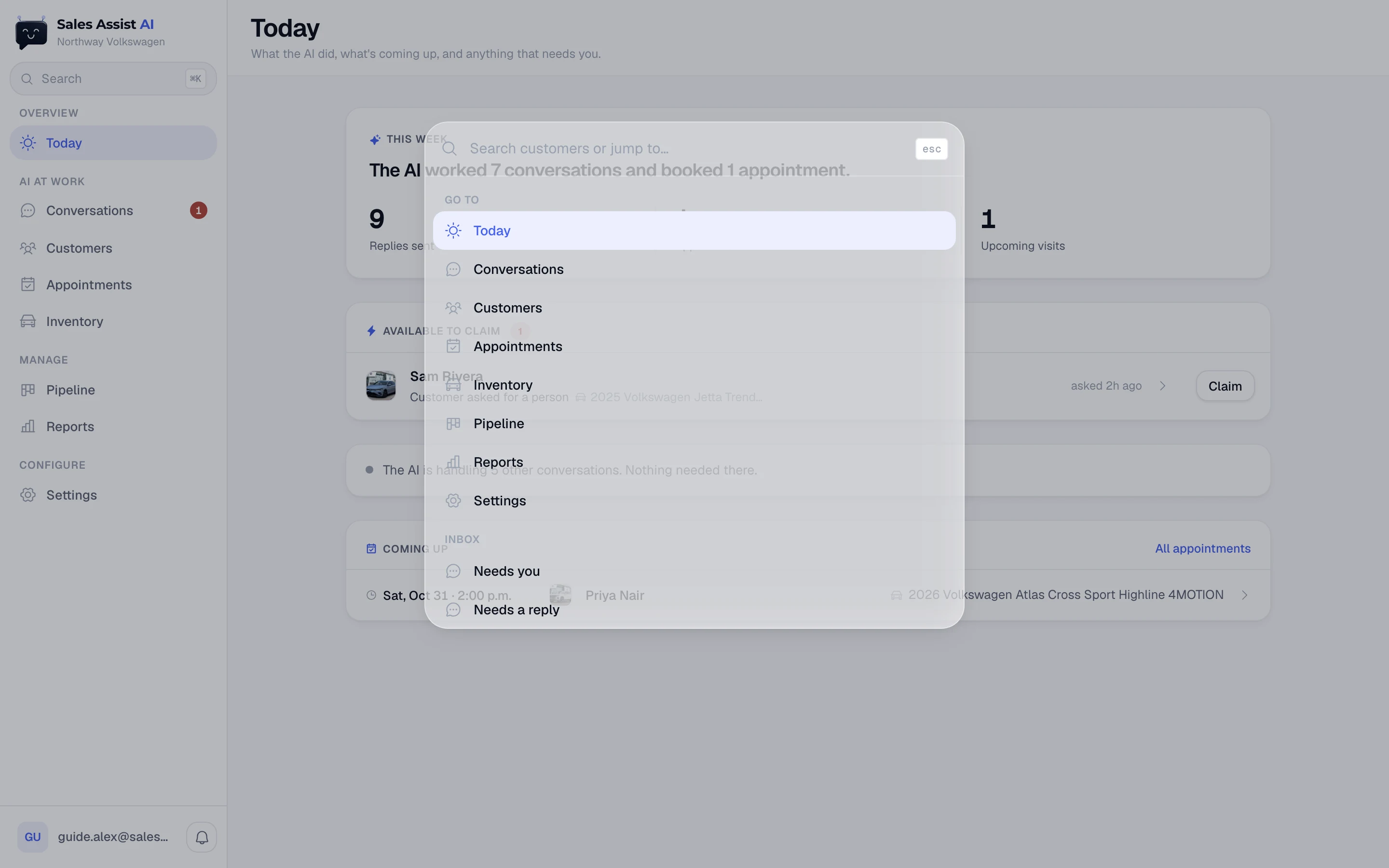
Press ⌘K (Ctrl K on Windows) anywhere, click Search at the top of the sidebar, or tap the magnifier on a phone. It does three things:
- Jump to a screen. Type "reports", press Enter.
- Find a customer. Type a name or number. A hit with an open thread drops you straight into that conversation.
- Jump to a bucket. Type "needs you", "needs a reply", "waiting on customer" or "quiet" to land on the inbox already filtered.
When a new version ships
A quiet notice appears telling you a newer version is available. Data on every screen refreshes itself all day, but the app's code does not: a tab left open for two days is running two-day-old code. If something looks wrong and you have not reloaded in a while, reload.
Today
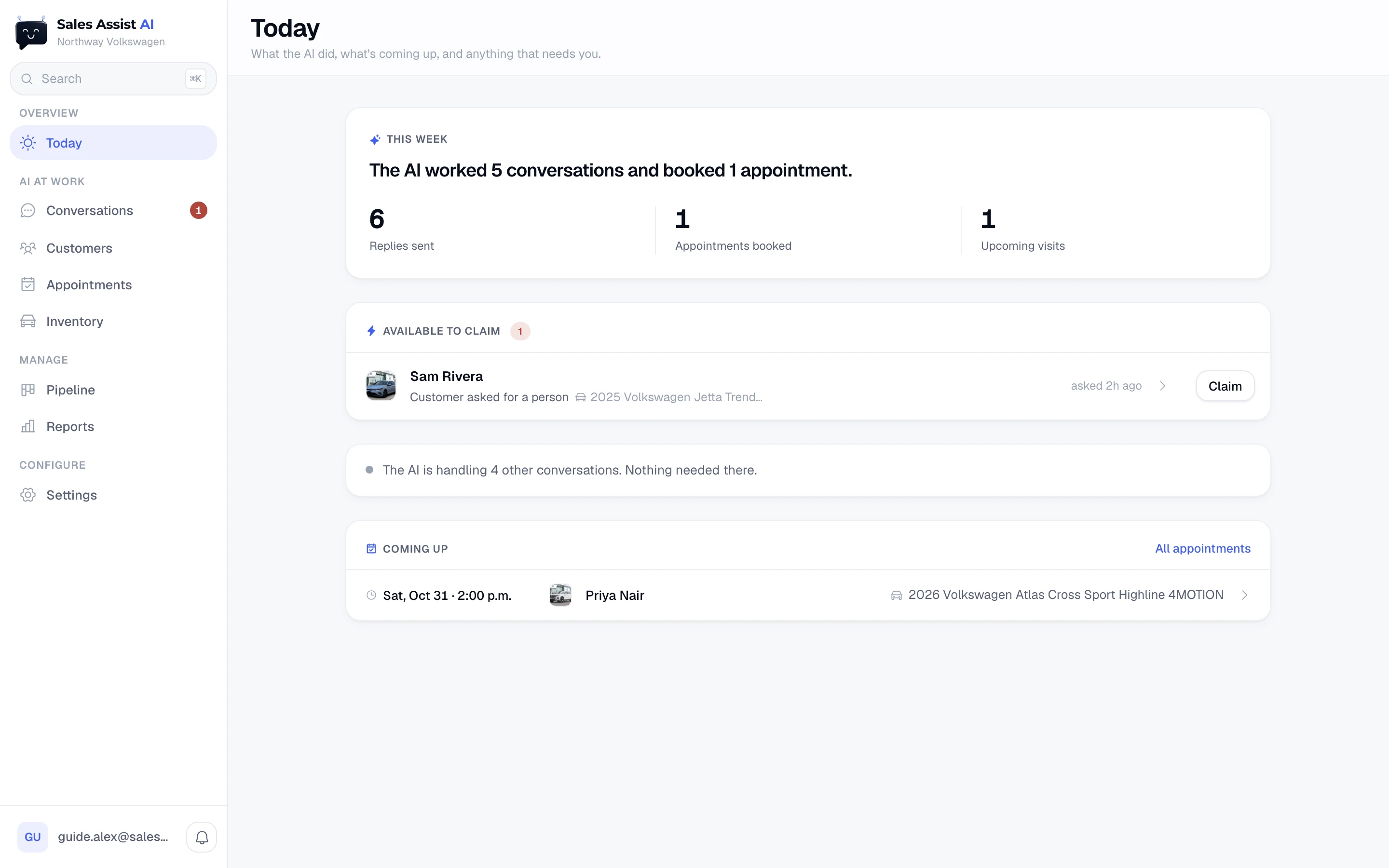
The home screen. What the AI did, what needs a person, and what is coming up.
This week
One sentence and the numbers for the last seven days:
| Number | What it counts |
|---|---|
| Replies sent | Messages the AI sent in the last 7 days. |
| Appointments booked | Visits put on the calendar in the last 7 days. |
| Median reply time | Half of leads got an answer faster than this. Managers and admins only. |
| Upcoming visits | Visits still ahead of you, any date. |
Available to claim
Leads the AI has flagged that nobody owns yet. Anyone can take one.
- Managers and admins see the customer, the reason, the car, and how long they have waited. Press Claim on the row.
- Salespeople see a locked card: whether it is a new lead or a booked visit, the slot if there is one, and how long ago it was flagged. Press Claim and everything unlocks.
Claiming makes you the owner. Alerts about that lead now go only to you, and the customer gets your name in appointment texts.
Needs you
Flagged threads that are already yours. Each row leads with the reason the AI flagged it, in its own words, and how long the customer has been waiting. Click through to the conversation.
You're on these
Threads you took over. The AI holds off on all of them until you hand them back, or until the thread has been quiet long enough for it to resume.
Confirm these visits
Tomorrow's bookings that nobody has confirmed with the customer. Press Confirmed once someone has actually spoken to them. Until then the AI keeps asking the customer to confirm.
Re-book missed visits
Customers who booked, did not show, and are still open. The AI keeps offering new times. Click the row to open the thread and call them yourself.
Gone quiet
We spoke last, nothing is booked, and nobody is running the thread. Sorted by buying-intent score, highest first.
The status line
One line with a grey dot: "The AI is handling 5 other conversations. Nothing needed there." It accounts for every thread not listed above it.
Coming up
The next visits on the calendar, with the time, the customer, and the car. Click one to open that customer's conversation, or All appointments to open the calendar.
Conversations
Every conversation, and the controls for taking one over.
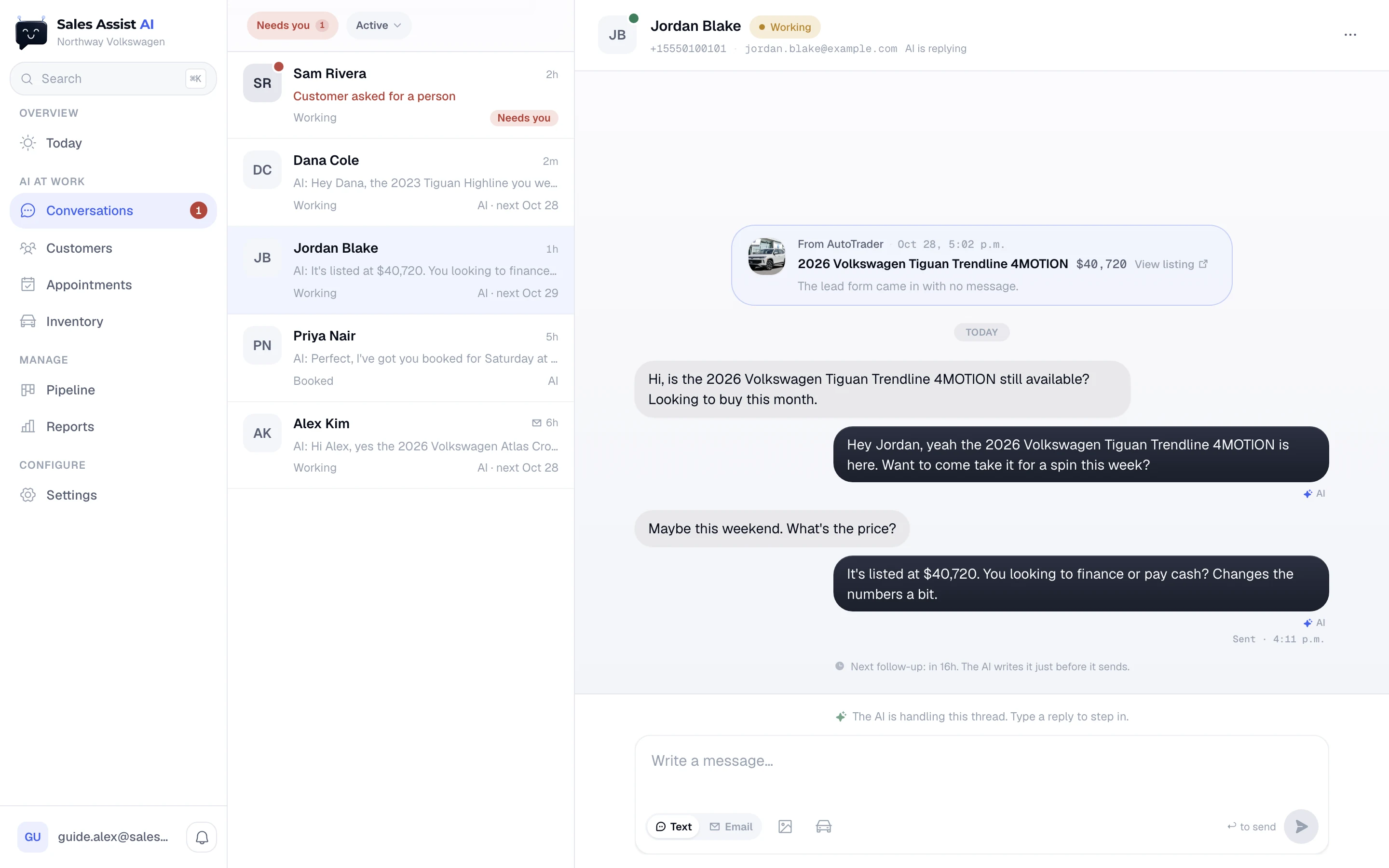
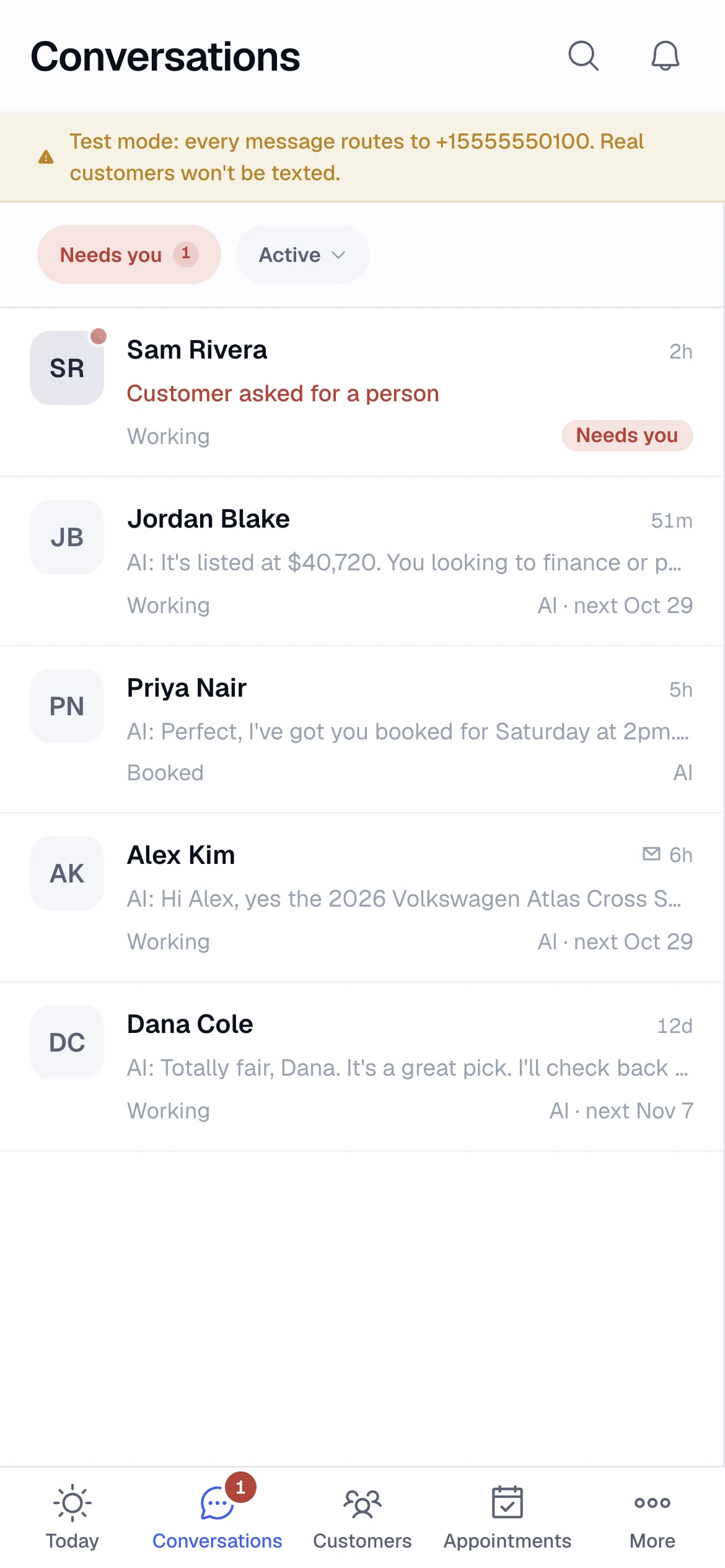
The filter chips
Above the list. They answer one question: whose turn is it? Every lead is in exactly one of these.
| Chip | Meaning | Healthy number |
|---|---|---|
| Needs you | The AI flagged the thread for a person and nobody has stepped in. Carries a count, and shows only when it has something in it. | Worked down to zero |
| Active | Everything that is not closed. The default view. The dropdown beside it narrows to Needs a reply, Waiting on customer, or Quiet. | |
| Needs a reply | The customer spoke last and nobody has answered. | Near zero |
| Waiting on customer | We spoke last and the AI has a next move planned. Most leads sit here. | Most of your leads |
| Quiet | We spoke last, nothing is planned and nobody is running it. | Zero |
| Closed | Sold, Lost, or opted out. Kept out of Active on purpose. Its own sub-filter splits the three. |
Two more controls sit on the same row: a sort (Latest activity, Waiting longest, Highest score) and a stage filter (All stages, New, Working, Booked, Visited, Sold, Lost).
Reading a row
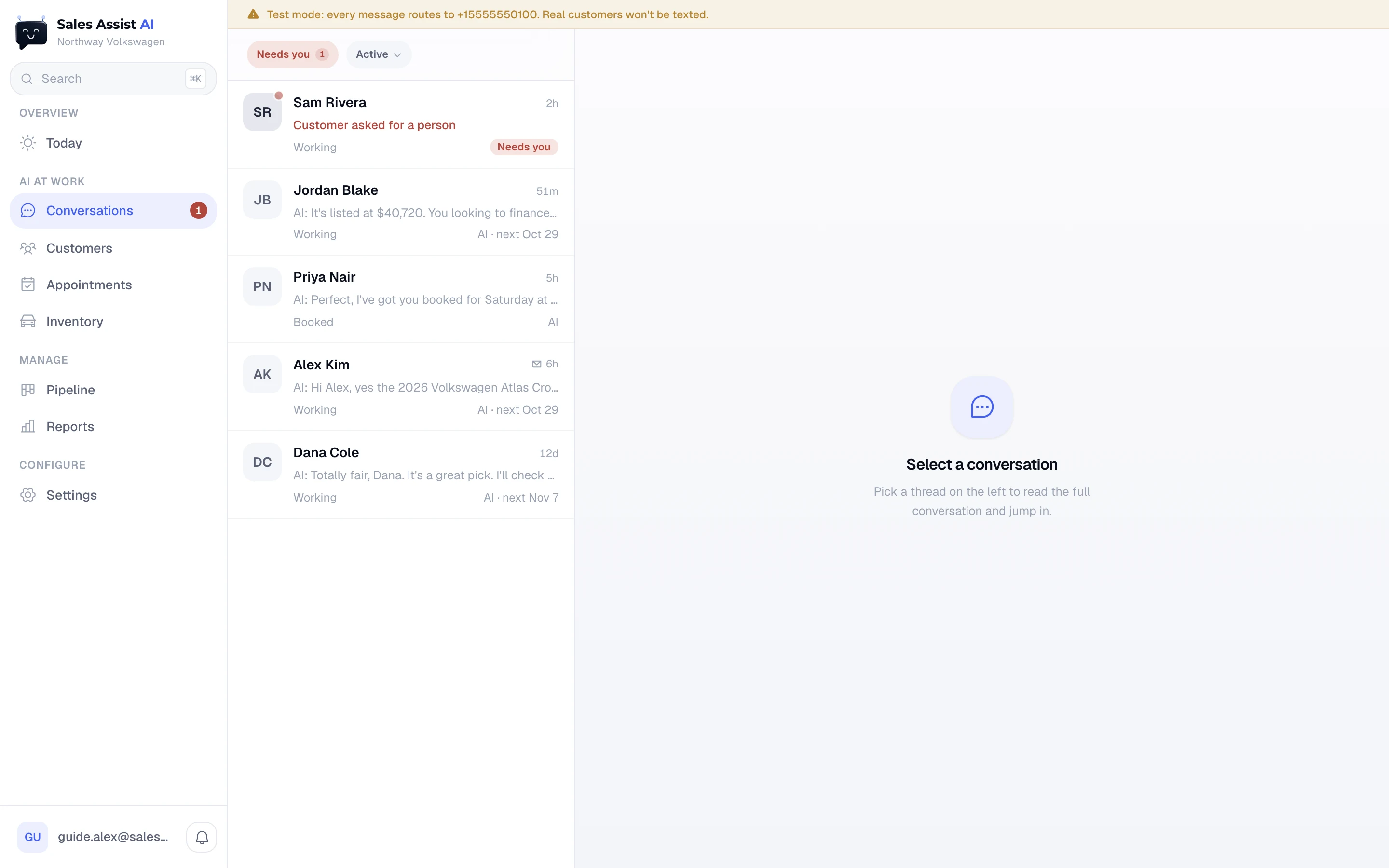
- The dot on the avatar
- Red means it needs a person and you can act on it. Blue means unread, or an alert of yours points at it. No dot means read and handled.
- Bold name
- A customer message arrived after the last time you opened the thread. Bold is only ever used for words the customer actually sent.
- Second line
- The reason a person is needed, in red. If nobody is needed, the last message instead, prefixed AI: or You: when we spoke last. A tapped link shows as Tapped the CarFax report · 50m.
- Third line, left
- The pipeline stage, and the department if the lead is not Sales.
- Third line, right
-
The status, in words:
Needs you a person is required.
AI is writing a reply is being composed right now.
Needs a reply the customer is waiting.
You're on it you are running this thread.
Alex · AI next Oct 29 Alex owns it and the AI's next touch is that day.
AI · next Oct 29 nobody owns it and that is the next touch.
AI · stuck the AI cannot compose a message here. Hover for the reason.
Quiet, Closed and Opted out mean what they say.
The thread
The lead card at the top
A tinted card above the first message: where the lead came from, when it landed, the car with its price and a link to the live listing, and the customer's own words if they typed any. The full lead form is on the customer card, where every field the source sent is grouped and readable.
Message colours
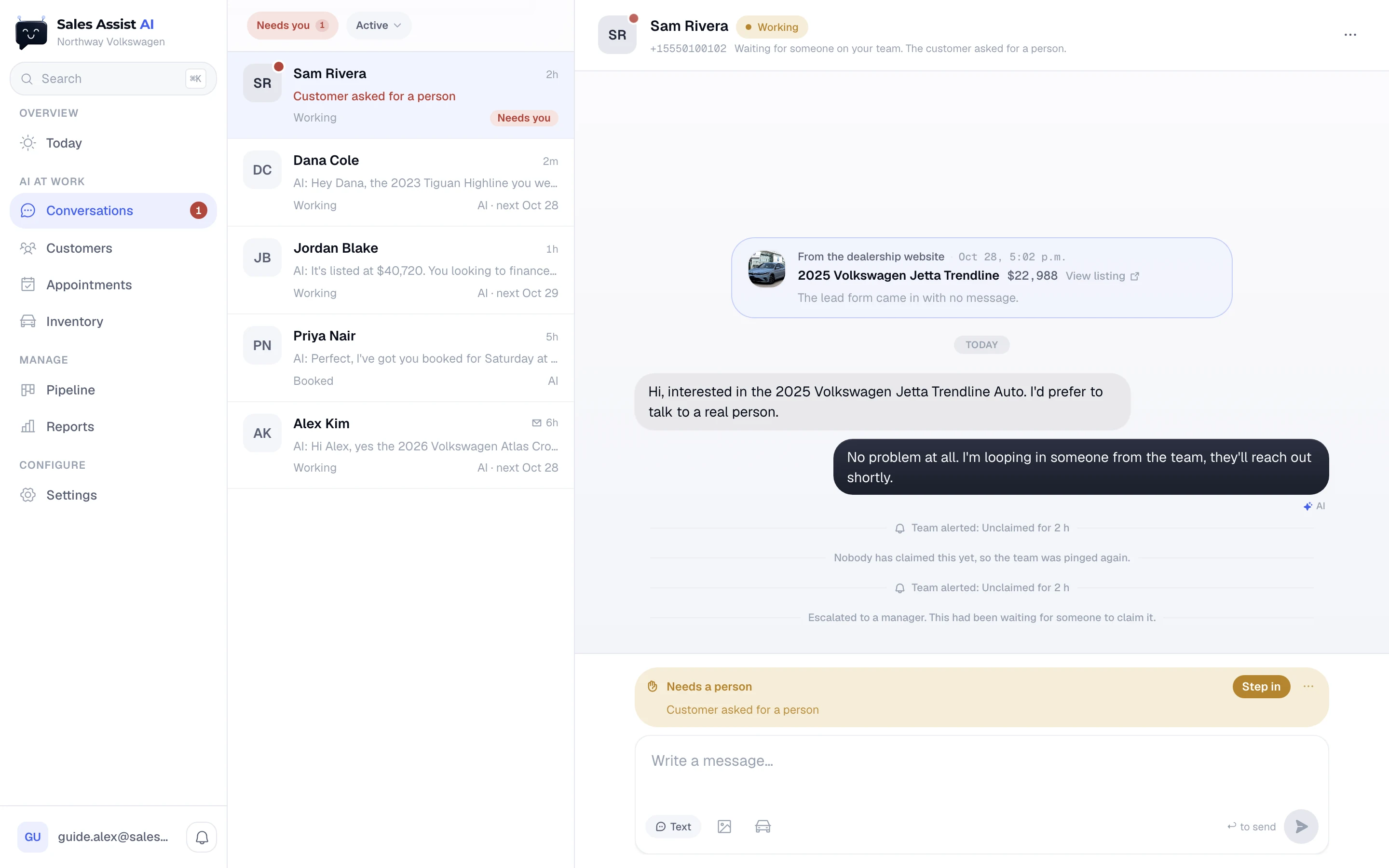
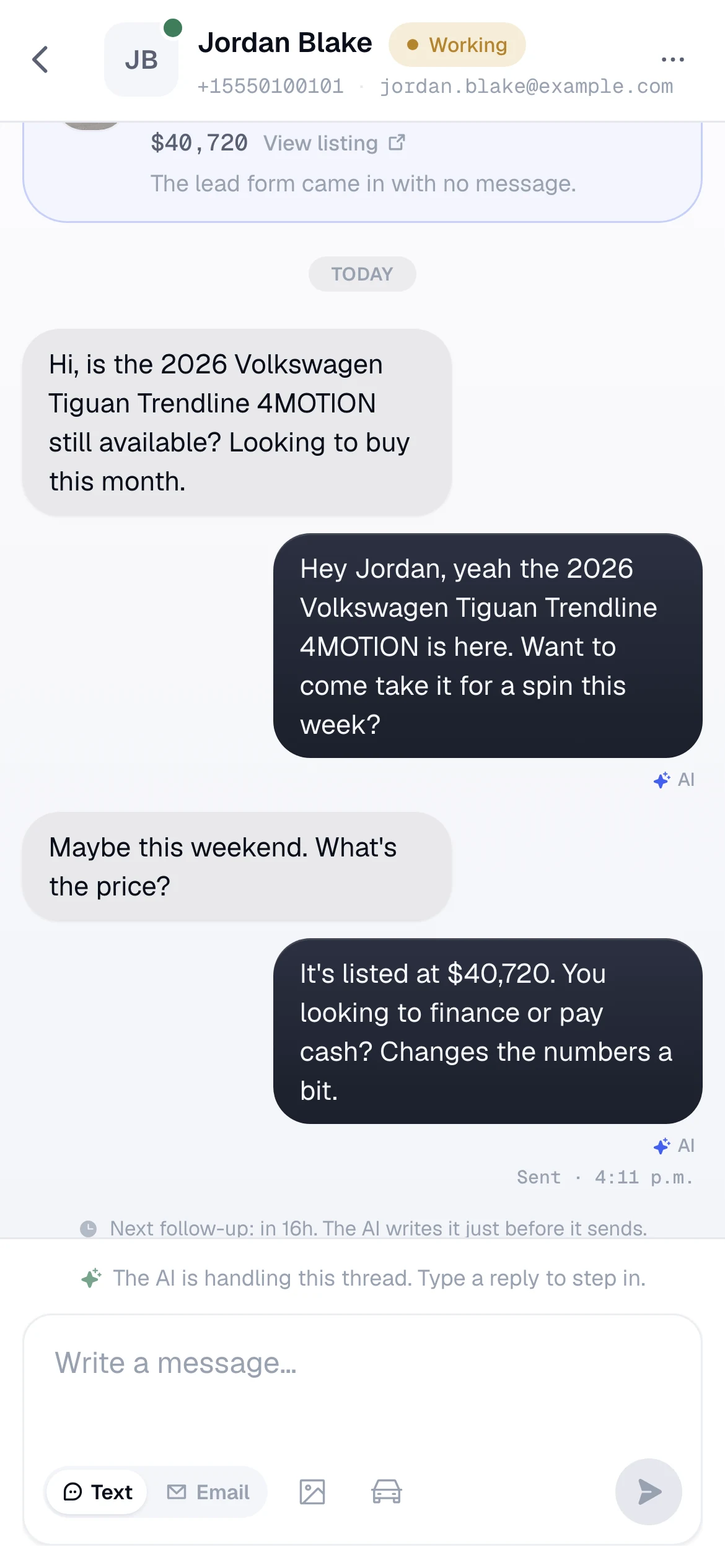
- Grey, left the customer.
- Blue, right a human on your team. Hovering shows the time.
- Dark slate, right, tagged ✦ AI the AI.
- Dashed outline a message that has not been sent yet.
- Email renders as a card with an envelope and the subject line, so you can tell channels apart at a glance.
- Photos appear as real images. Click to open full size.
- Red bubble, "Not delivered" the send failed. The date and time are on the receipt.
The things that are not messages
- Next follow-up: in 17h
- A centred line under the last message. The AI has decided when the next message goes and what it is for. It writes the words just before it sends, from the live conversation.
- Scheduled message
- A dashed bubble that says Sends in 2h. Hover it for Edit and Cancel. Editing changes the words that go out.
- On hold
- A queued message marked amber, when something is stopping it from sending. It shows what was queued and why it is held.
- Typing dots
- The AI is composing right now. The dots clear when the message appears.
- Centred grey caption
- Something the system did on its own: the team was alerted, escalated to a manager, resumed, marked a no-show, asked to stop messages, marked lost.
- Amber "The AI asked for a person"
- The full reason, written at the moment the AI flagged the thread. It stays in the transcript.
- New lead form
- The same customer submitted another lead form, often about a second car. It shows as a small event in the timeline, not a chat bubble.
The dock above the composer
Exactly one strip shows at a time, chosen by priority. When you resolve the top one, the next appears.
| Strip | Says | Buttons |
|---|---|---|
| Send failed | A message you just sent did not go. | |
| Cannot message | Nobody can reach this customer, and why: opted out, email bounced with no phone, no texting number at the store, or nothing on file. | The composer is disabled. |
| Needs a person | The reason the AI flagged it, and how long the customer has waited. | Step in, plus a ⋯ menu with I'll call and The AI's got it. |
| You said you would call | Names the moment it goes back to the team if nothing happens. | Called |
| How did the visit go? | A booked visit whose time has passed. Follow-ups are held until you answer. | Sold, Came in, No-show |
| Log this visit? / Move the visit? | The AI spotted a time in a rep's message and offers to put it on the calendar. | Log or Move, and an × to dismiss. |
| The AI is handling this thread | Nothing to do. Typing a reply steps you in. | |
| The AI has no message it can send | Its safety checks refused every version it wrote. The reason is quoted. | Write a reply yourself, or leave it and the AI tries a new angle. |
| The AI is paused | You are running the thread. Says exactly when the AI takes back over if it goes quiet. | Each message you send resets that timer. |
Step in, hand back, and the timers
- Step in pauses the AI and makes the lead yours if nobody owned it. Typing a reply does the same thing.
- Hand back to the AI releases your hold. The AI resumes.
- If you step in on a lead nobody owned and it goes quiet, the AI takes it back automatically after 24 hours.
- If you claimed the lead and it goes quiet, the AI resumes after 48 hours. The lead stays yours.
- When the customer asked for a person, the thread stays flagged until someone claims it. The AI keeps answering their questions in the meantime, so nobody is left hanging.
I'll call, then Called
- Press I'll call. The lead becomes yours, the AI pauses, and a clock starts. If nothing happens on the thread by tomorrow, the lead goes back in front of the team.
- After the call, press Called and answer How did the call go?
- Booked a visit opens the log-a-visit dialog. Reached them asks for a one-line note, then asks whether you keep working it or hand it back. No answer / voicemail hands it straight back to the AI.
Whatever you type lands in the thread and in what the AI knows, so its next message is not written as if the call never happened.
The composer
- Text / Email toggle
- Only appears when both channels work: the customer has a number and a working email address, and your store has a texting number. Otherwise it is a plain label showing the channel your reply will go out on.
- Subject
- Email only. Pre-filled from the thread. Editable.
- Photo
- The image button opens the picker, or the camera on a phone. You can also drag a photo onto the thread or paste a screenshot with ⌘V.
- Car
- The car button picks a vehicle from inventory and attaches its listing, so you never type a stock number into a text.
- Sending
- Enter sends a text. Shift Enter makes a new line. In email mode Enter always makes a new line, and ⌘Enter sends.
The thread header
- The customer's name, the stage pill, and every way you can reach them. A permanently bounced email shows struck through. The grey sentence beside them is the thread's state: AI is replying, Waiting for someone on your team, Customer opted out. Replies won't send.
- The corner dot on the avatar: red = needs a person, blue = a person is handling it, green = the AI is handling it, grey = nobody can message them.
- The ⋯ menu holds Customer card, Step in, Assign to me, Log a visit, and Move to Service / Parts for managers and admins.
Customers
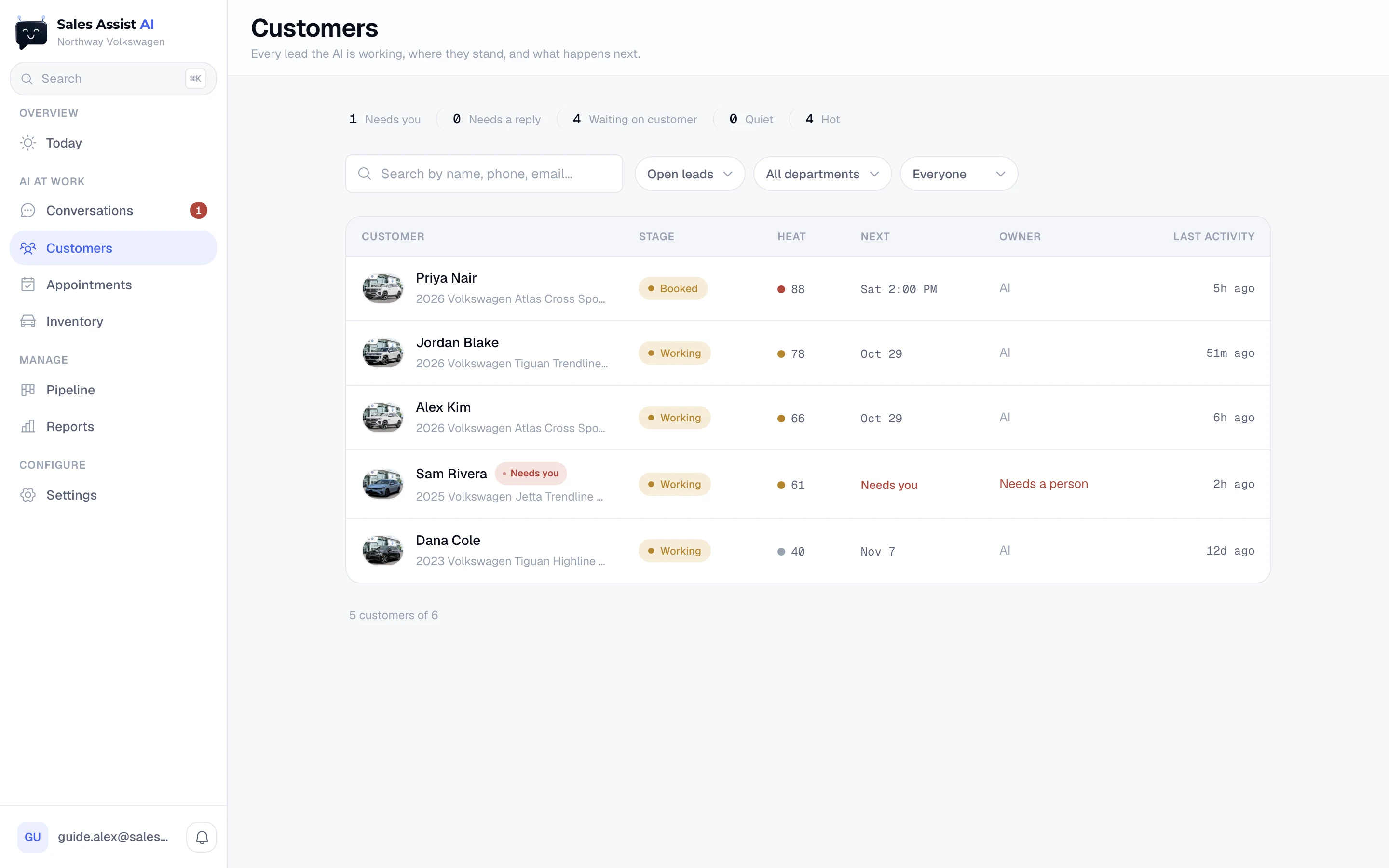
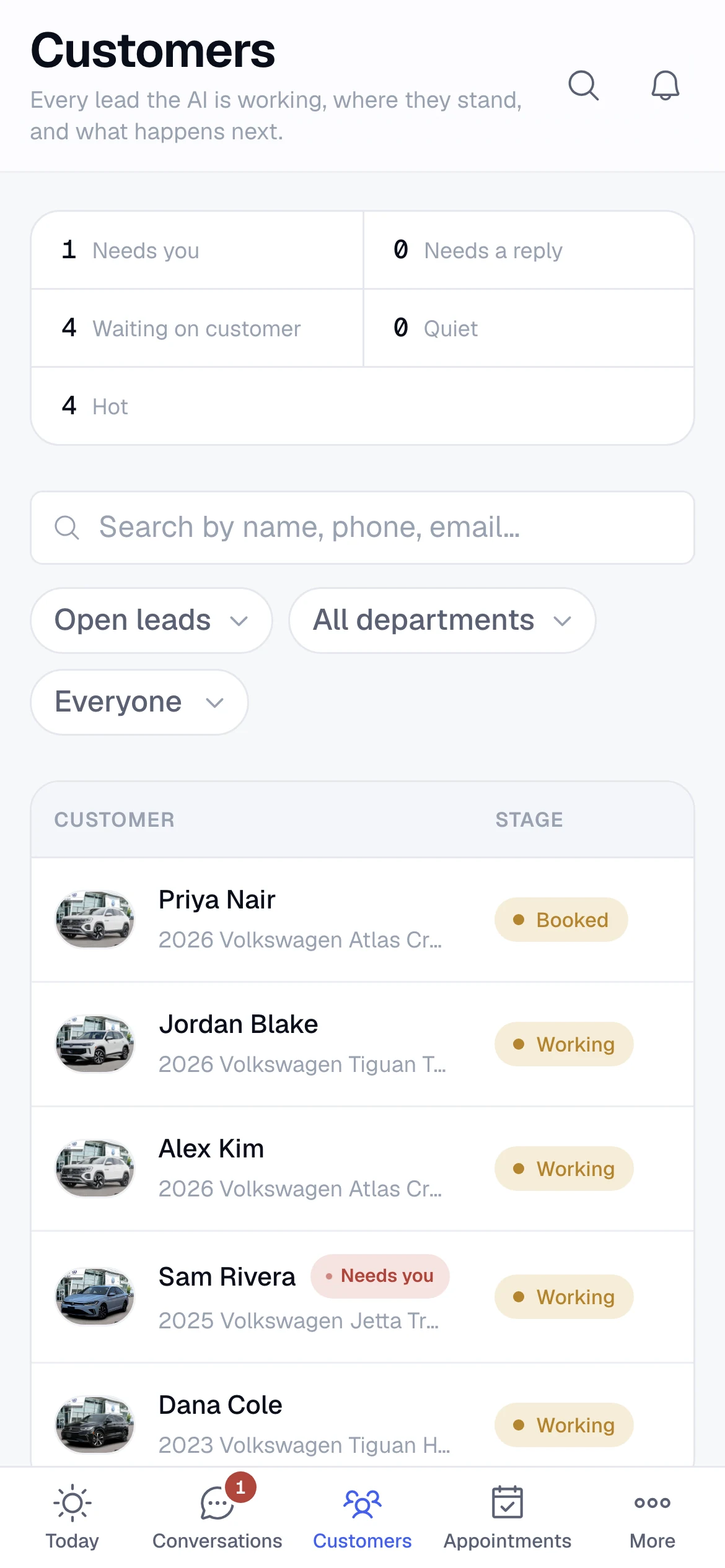
Every lead the AI is working, in one table with filters.
The counts across the top
Five numbers that double as filters: Needs you, Needs a reply, Waiting on customer, Quiet, Hot. Click one to filter the table to it, click it again to clear. Hot means a buying-intent score of 60 or more on a lead that is still open.
Search and filters
- Search covers name, phone, email, the car they want, the owner, the stage, and the status words. Typing "quiet" or "booked" finds those leads.
- Stage opens on Open leads: New, Working, Booked and Visited together. Pick one stage, Sold, Lost, or All stages to see everyone ever.
- Contacts appears once anyone at the store has opted out: All contacts, Opted out, Still reachable. An opted-out customer keeps whatever stage they had, so this is its own control.
- Department and Owner (Everyone, Mine, No owner) appear for managers and admins. A salesperson's table is already only their own leads.
The columns
| Column | What it tells you |
|---|---|
| Customer | A photo of the car they asked about, their name, and the car underneath. A red Needs you pill if a person is required. |
| Stage | Where they are in buying. Plus a department badge if they are not a Sales lead. |
| Heat | A coloured dot and a score out of 100. Red at 80 and up, amber at 50 and up. Hover for the reasons behind the score. A closed or opted-out customer shows no heat. |
| Next | What happens next, in priority order: a booked visit, then the day of the AI's next message, then AI stuck if it cannot compose one, then the status word. |
| Owner | The rep who claimed it. AI means nobody has, and it does not need one. Needs a person in red means it does. A dash means the customer opted out. |
| Last activity | How long since the last message either way. |
Rows are sorted hottest first. Click any row to open the customer card. The table updates itself live as messages land.
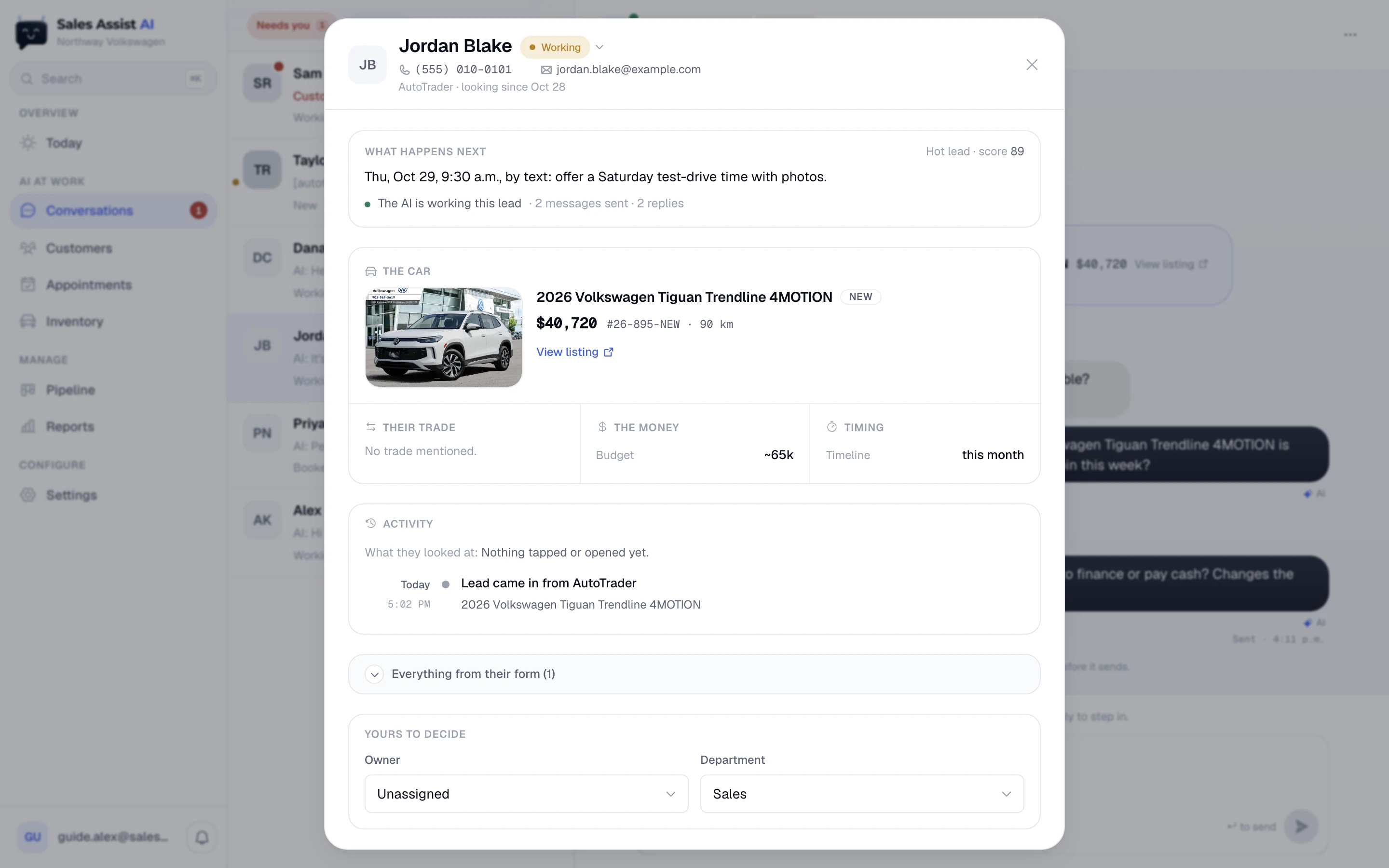
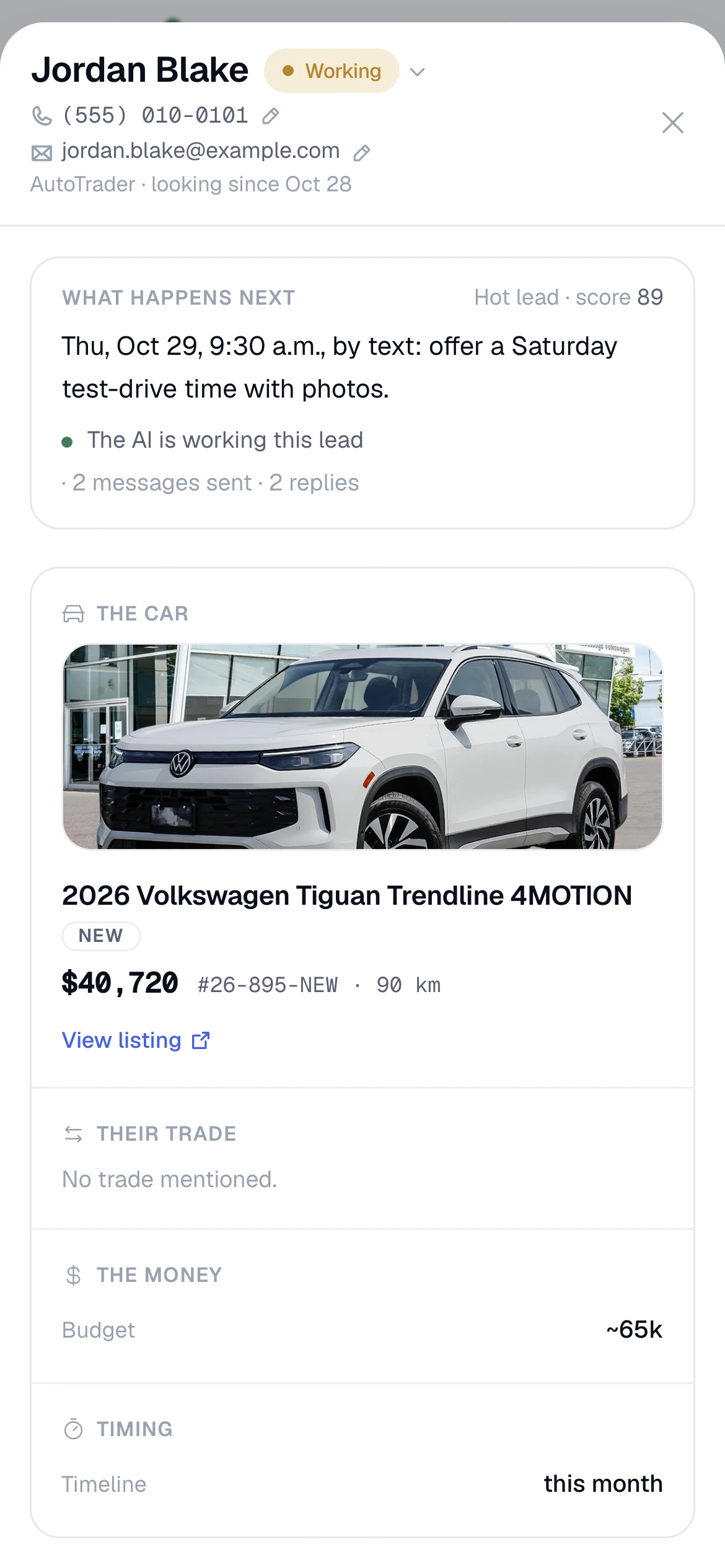
The customer card
One page per lead. It opens from Customers, Pipeline, Today, or the ⋯ menu of any thread.
Header
- Their name, their phone and email (tap to call or email), where the lead came from and how long they have been looking.
- The stage pill is the control. Click it to move the lead. Sold and Lost ask for confirmation first, and only managers and admins get those two.
Marking a lead Sold
Confirmation says what happens: the AI stops all follow-ups and sends a thank-you text, with your review link if one is set up. A manager can undo it from the same menu.
Marking a lead Lost
Follow-ups stop, the lead leaves the open views, and the rep comes off it. There is an optional What happened? box. It is saved on the customer, so if they come back months later the AI reads it before writing anything. It never repeats it back to them. If the customer reaches back out, the lead reopens for anyone to claim.
What happens next
One line from the AI, in plain words: when the next message goes, on which channel, and what it is for. For example "Thu, Oct 29, 9:30 a.m., by text: offer a Saturday test-drive time with photos." Beside it, the heat and the score. Under it, who has the thread and the tally so far: The AI is working this lead · 2 messages sent · 2 replies.
When the AI has decided to wait rather than send, the line says what it is waiting for and that it will decide again. When the customer has opted out, it says Nothing. They opted out, so no one contacts them again.
The deal
- The car
- Photo, title, price, stock number, mileage, condition, and a link to the live listing. Every other car they are still asking about gets its own row underneath. A car a newer inquiry displaced shows as a muted Earlier line with the date it stopped.
- Their trade
- The trade vehicle, mileage, accidents, estimated value, VIN, keys, options. If all we know is that they want to trade, it says so. Blank reads No trade mentioned.
- The money
- Budget, payment talk, credit rating, zero down, and anything else about money from the form or the chat.
- Timing
- When they plan to buy, and their visit record.
Visits
On a lead with an appointment, every visit is listed with the buttons that run it. These go through the same path the AI uses, so the stage moves and the team is told, whoever clicked.
| State | Shows | Buttons |
|---|---|---|
| Upcoming, not confirmed | An amber badge, plus a line saying the AI keeps asking them to confirm. | Confirm, Move, Cancel |
| Upcoming, confirmed | A green Confirmed badge. | Move, Cancel |
| Past due | Nothing marked yet. | Sold, Came in, No-show, Rescheduled |
| Marked | The outcome and your note. | Change |
| Cancelled | Who cancelled and any note. |
Sold and Came in ask What happened? The note is optional. It lands in the thread and the AI reads it before its next message. Cancel asks whose call it was. Customer cancelled and We cancelled produce differently worded rebook messages from the AI.
Activity
What they looked at (the links they tapped, the emails they opened), then one feed grouped by day with the clock down the left: how they arrived, what the AI did, their own typed questions in quotes, alerts, claims, visits, stage moves, and opt-outs. Long histories collapse with a Show N earlier link.
Everything from their form
Folded by default. Every field the lead source sent, grouped and readable, including a financing application if one came in. Worth checking before you ask a customer for details they have already given.
Yours to decide
The two routing controls, at the bottom of the card.
- Owner a dropdown for managers and admins. A salesperson on an unclaimed lead gets an Available badge and a Claim this lead button instead.
- Department Sales, Service or Parts. Managers and admins only.
The stage is not down here. It is the pill in the header. The AI keeps the stage current on its own, so moving it is a correction, not routine.
Appointments
Visits the AI booked, and how they turned out.
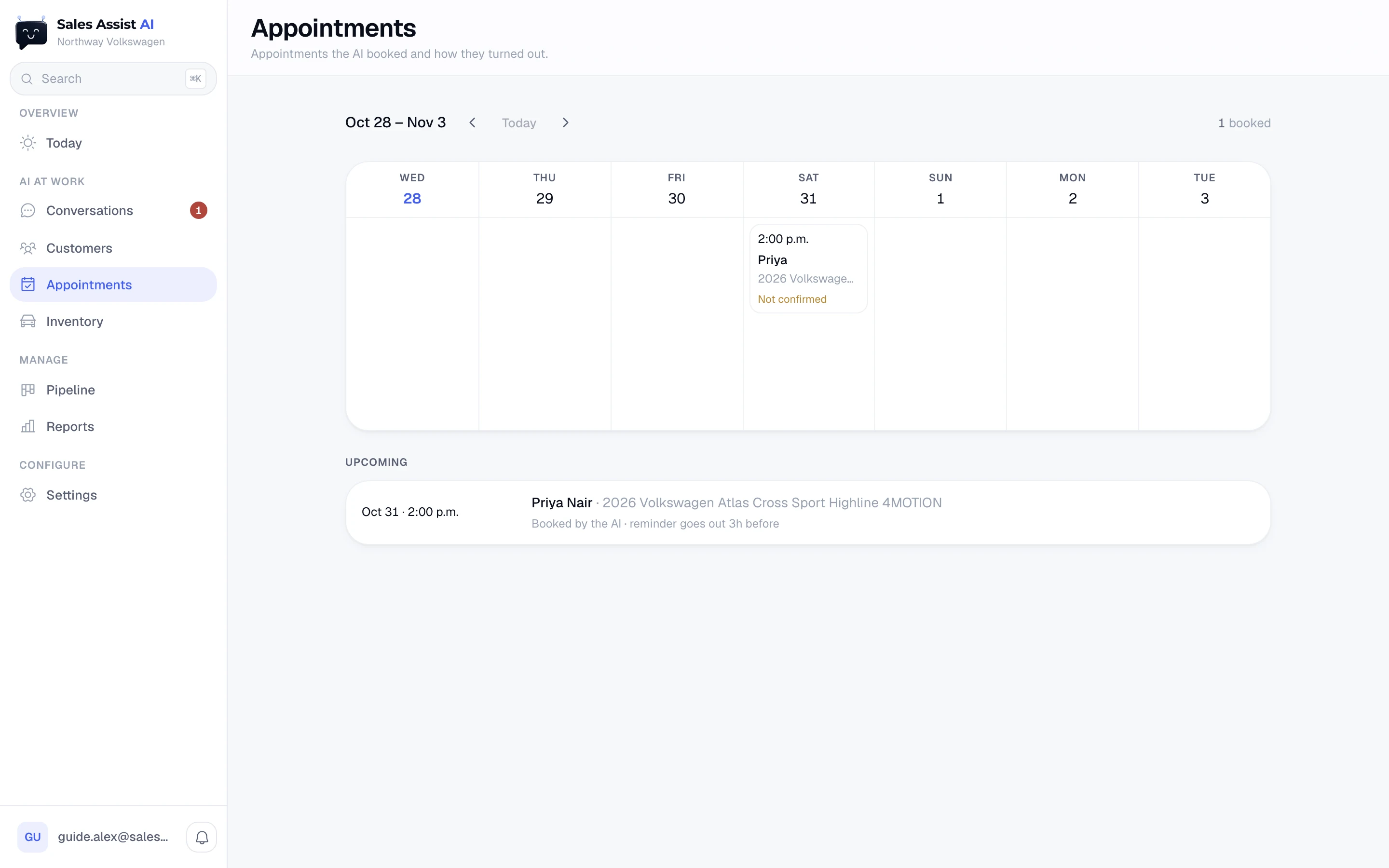
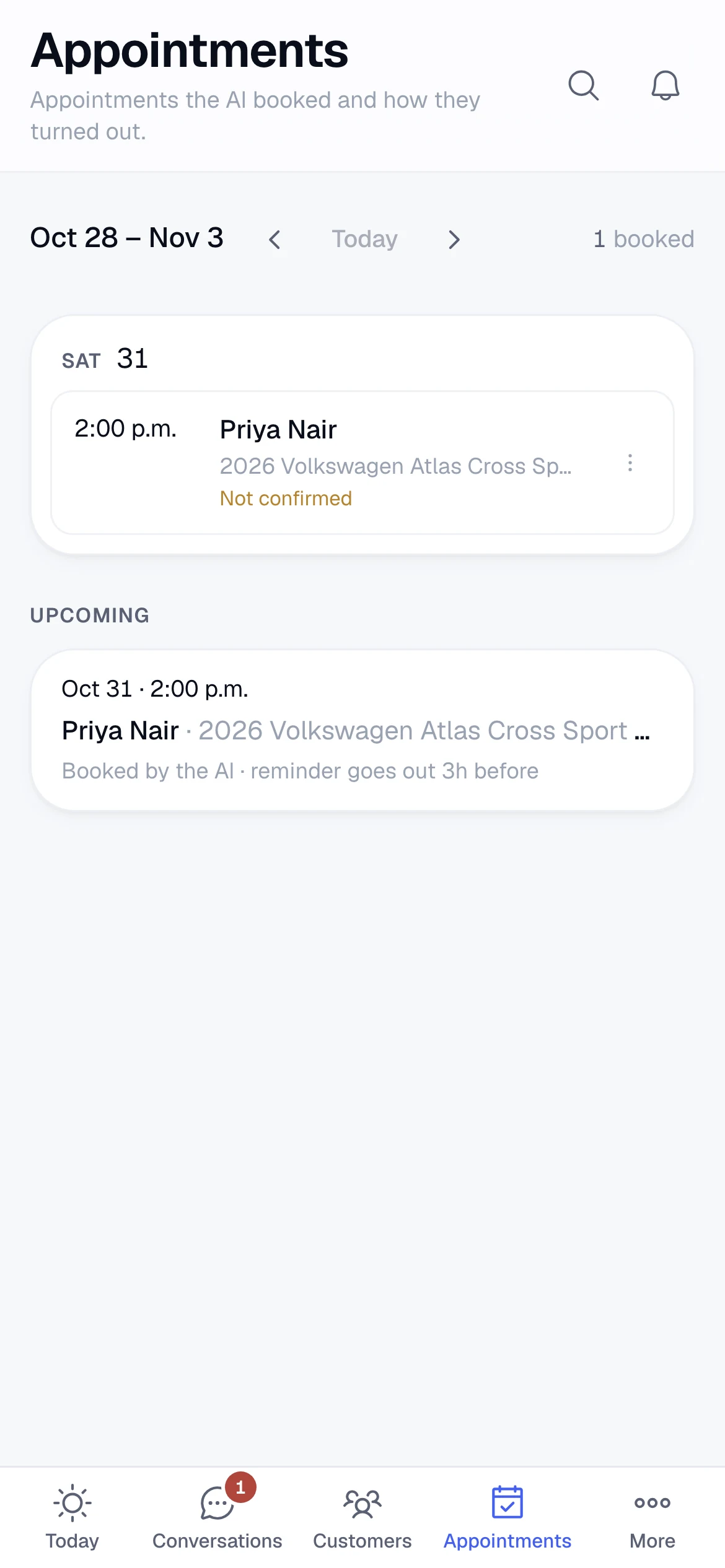
Use the arrows to move a week at a time, and Today to come back. The count of booked visits for the visible week sits on the right.
A block on the calendar
- Time, first name, and the car.
- Confirmed or Not confirmed under a booked visit.
- Green fill means the visit happened. Red fill means a no-show. A struck-through time means cancelled.
- Click the block to open that customer's conversation.
The ⋯ menu on a booked block
| Action | What happens |
|---|---|
| Mark confirmed | Drops it off the confirm list on Today, and the AI stops asking them to confirm. |
| Mark sold | The AI sends a thank-you and asks for a review. |
| Came in, still deciding | The AI keeps working the lead toward the sale. |
| Mark no-show | The AI offers to rebook them. |
| Reschedule | Pick a new date and time. Reminders reset and their confirmation of the old time is dropped. |
| Cancel appointment | Asks whose call it was, with an optional note. The lead moves back a stage, because there is no visit any more. |
Upcoming
Under the grid: the next booked visits across all future weeks, with who booked it (the AI or the team) and where the reminder stands. Reminders go out the day before and about three hours before the visit, and the app tells you which have gone.
Inventory
The cars the AI knows about, and what it can say about each one.
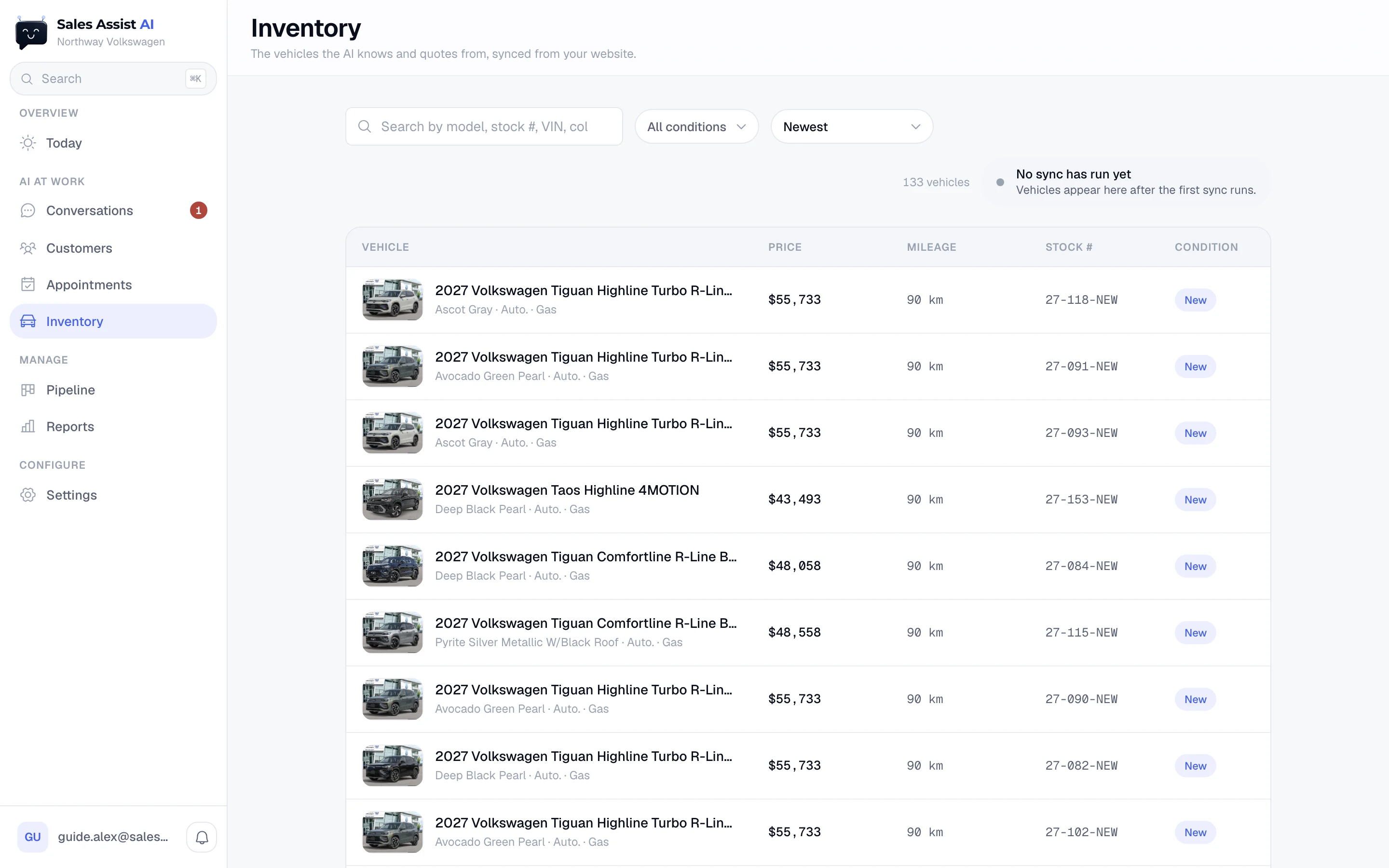
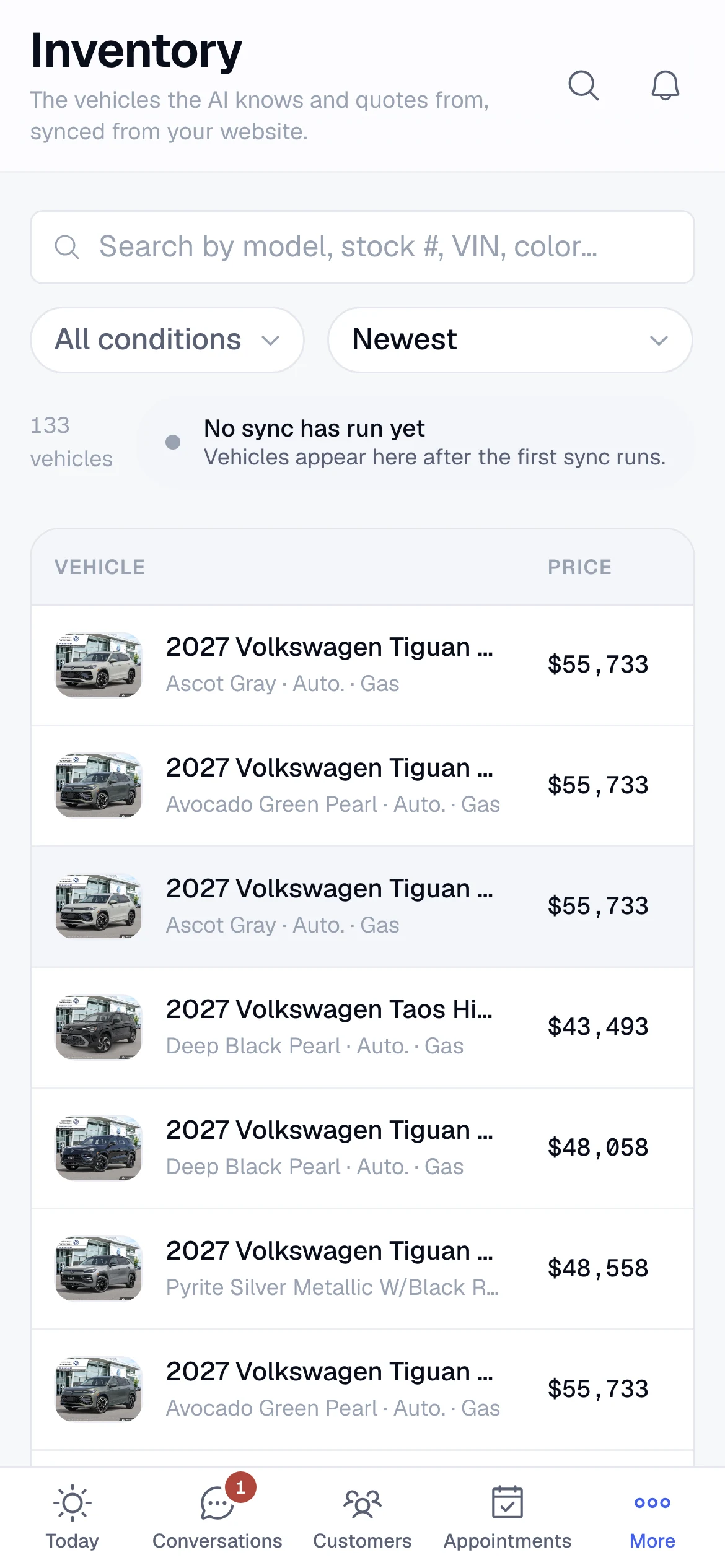
Reps do not need this screen, because the AI quotes from inventory on its own.
The health line
Beside the vehicle count. It reports the state of the last sync.
- Connected and syncing with when, and how many cars.
- Last sync found no vehicles. The source needs checking.
- Last sync failed, with the error.
- No sync has run yet.
The end of the same line counts listings missing photos or prices. It turns amber once more than one in ten of the lot is affected. Those are cars the AI cannot fully describe or quote.
Finding a car
- Search by model, stock number, VIN, or colour.
- Filter to New or Used.
- Sort by Newest, price up or down, mileage, or Needs attention, which puts the listings with the most missing fields first.
Opening a car
Clicking a row opens exactly what the AI can tell a customer about it:
- Overview price and previous price, mileage, stock number, VIN, condition, certified.
- Specs body style, transmission, drivetrain, fuel, doors, seats, colours, fuel economy, horsepower. Fields with no value are left out rather than shown empty.
- Features and Safety the features the AI can list.
- Photos the images it can text.
- Description the listing text, word for word.
- CarFax and Open live listing buttons at the top.
The gaps box. If a car has no photo, no price, or no VIN, the drawer says so plainly: the AI cannot text a car with no photo, cannot quote one with no price, and cannot pull history without a VIN. Fix it on the listing on your website and the next sync picks it up.
Pipeline
The funnel, and every lead in a stage.
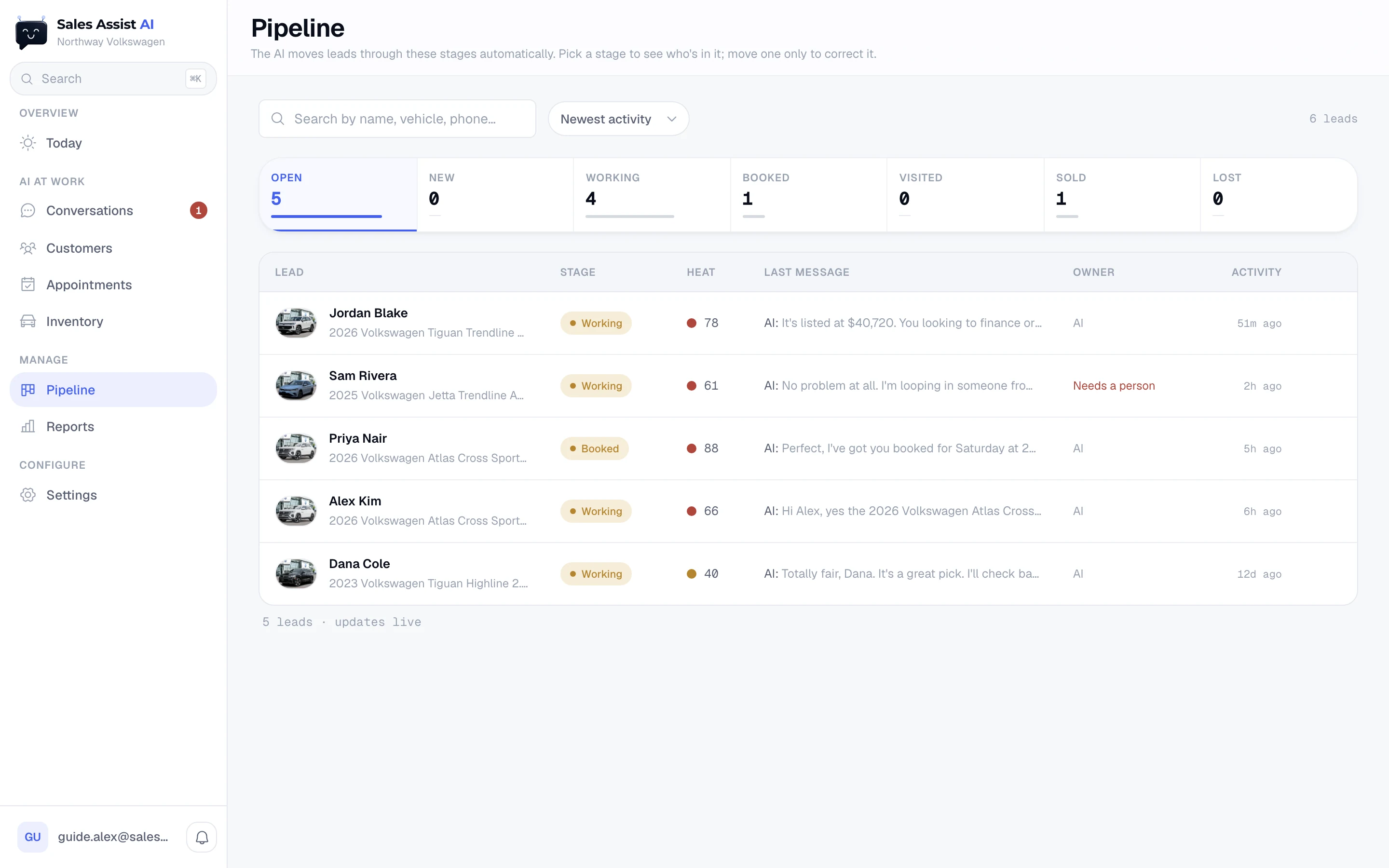
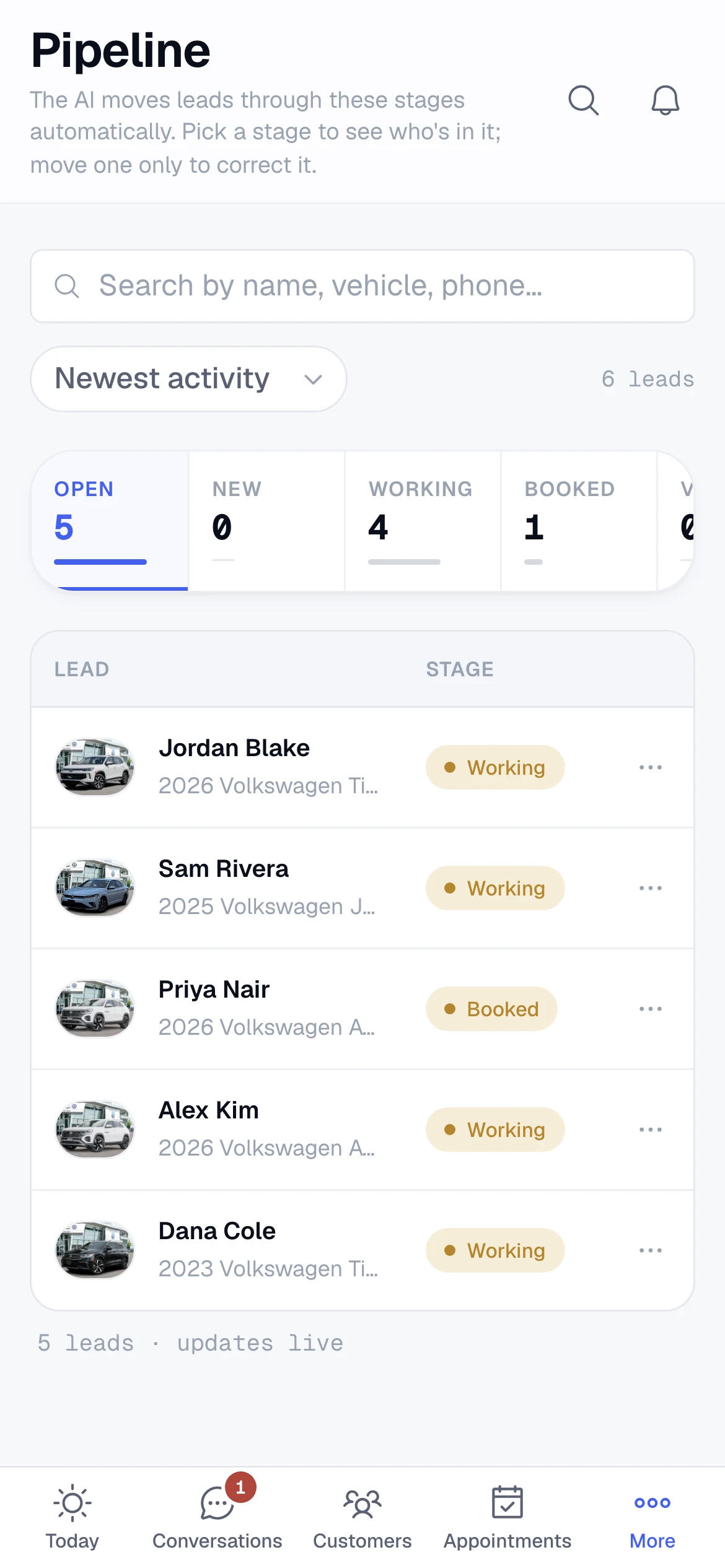
Seven segments with live counts and a share bar. Click one to list its leads underneath.
| Segment | Who is in it |
|---|---|
| Open | Every lead being worked: New, Working, Booked and Visited together. The default view. |
| New | Leads that just arrived and have not been contacted yet. |
| Working | The AI has reached out. A missed visit sends them back here, because they are still being worked. |
| Booked | A visit is on the calendar. |
| Visited | They came in. |
| Sold | The deal closed. Shown only when you pick it. |
| Lost | Went cold or opted out. Shown only when you pick it. |
The AI moves leads through these stages on its own. Move one by hand only to correct it.
The list
- Search by name, vehicle, phone, email, or stage name.
- Sort by Newest activity, Highest score, or Longest in stage, which finds the leads that have stalled.
- The Heat column is a readout, not a control: the dot is the band and the number is the AI's buying-intent score. Hover it for the reasons. Nobody sets warmth by hand.
- The Owner column shows the rep, or AI, or a red Needs a person. Do not text under a name means they opted out.
- The last column shows the time since the last message and how long the lead has sat in its current stage.
The ⋯ menu on a row
Open in Inbox, then a Move to … entry for every other stage. Sold and Lost ask for confirmation and are limited to managers and admins. Clicking the row itself opens the customer card.
Reports
Speed, funnel and outcomes over a period you choose.
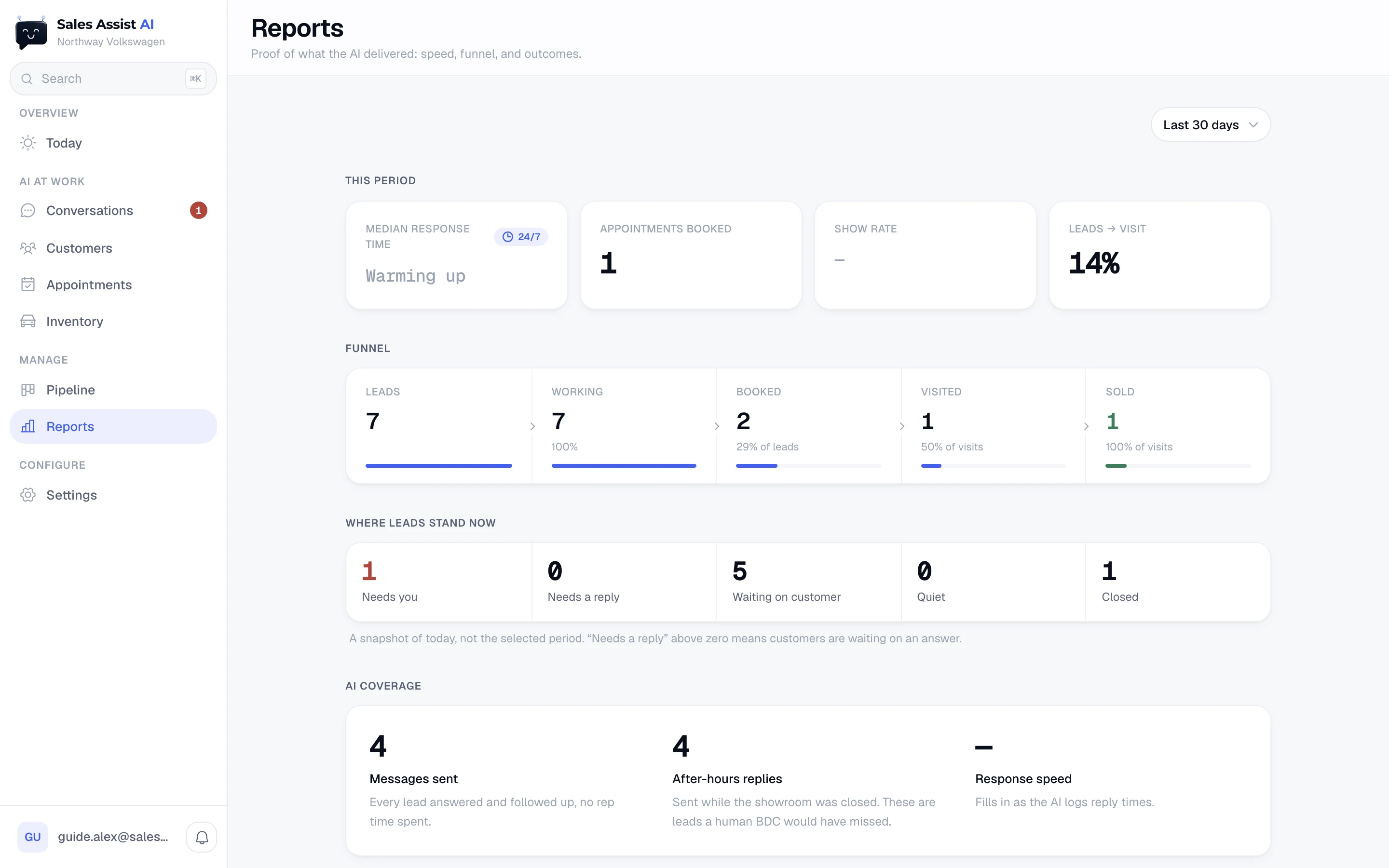
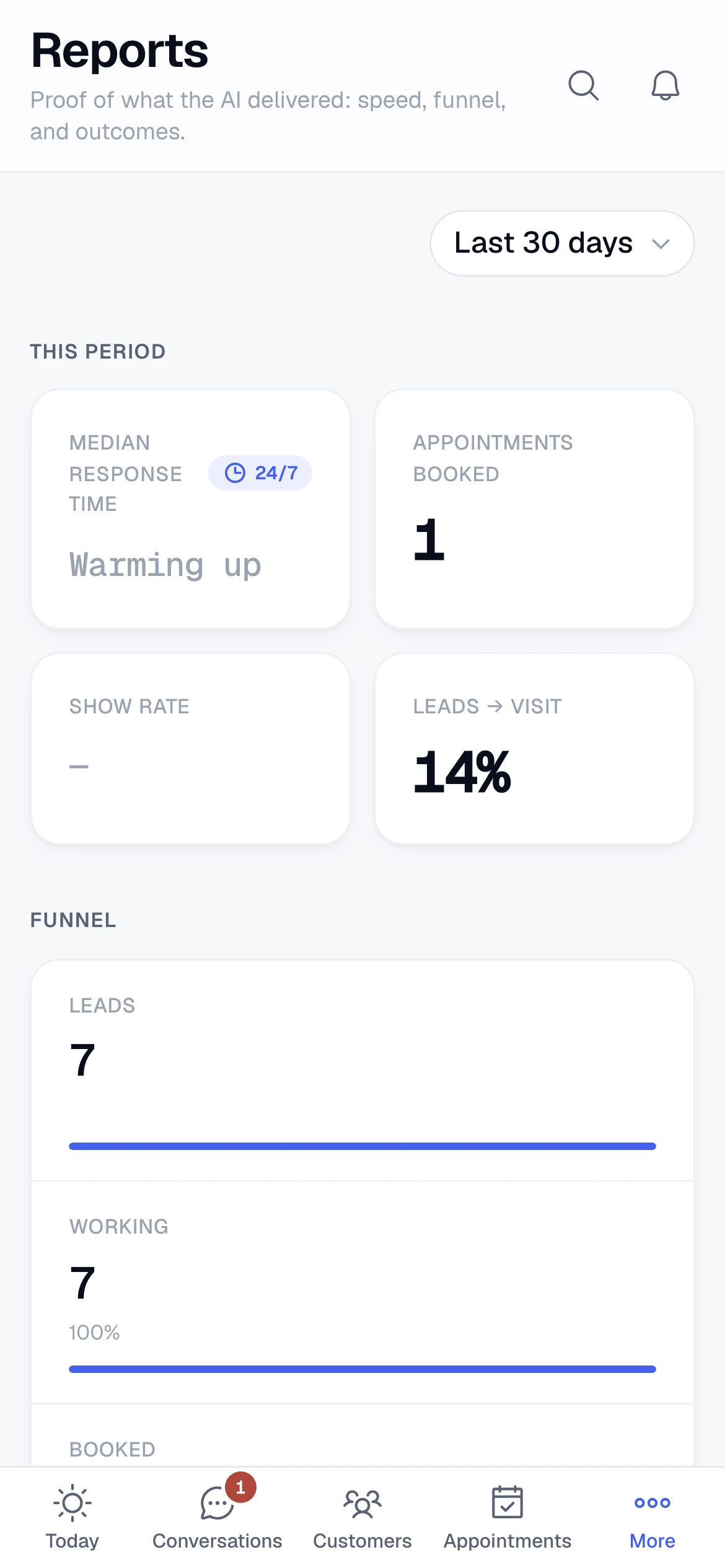
This period
| Number | Meaning |
|---|---|
| Median response time | Half of leads were answered faster than this, half slower. Reads Warming up until enough replies have been timed. |
| Appointments booked | Visits put on the calendar in the period. |
| Show rate | Of the visits that have been marked, the share that showed up. |
| Leads → visit | The share of leads that turned into a booked visit. |
Funnel
Leads → Working → Booked → Visited → Sold, with the count, the conversion under each step, and a bar showing its share of the first step. Sold counts deals marked Sold in the app, so it depends on the team marking them.
Where leads stand now
A snapshot of right now, not affected by the date range: how many leads are in each status. Needs you and Needs a reply turn red above zero, because they mean somebody is waiting.
AI coverage
Three numbers with a sentence each: messages sent, after-hours replies sent while the showroom was closed, and response speed with the median and the 90th percentile.
Lead sources and demand
Every source with its leads, appointments, sold count and close rate, sorted by close rate. Then total leads in the period, and the five vehicles named most often by those leads. A brand-new store sees a short "your numbers are on the way" card until the first conversations land.
Settings: AI Agent
Your AI's name, how it signs, and when it hands off.
Settings has six groups down a left rail. Each group has its own web address, so you can bookmark or share one. Every card saves on its own Save button.
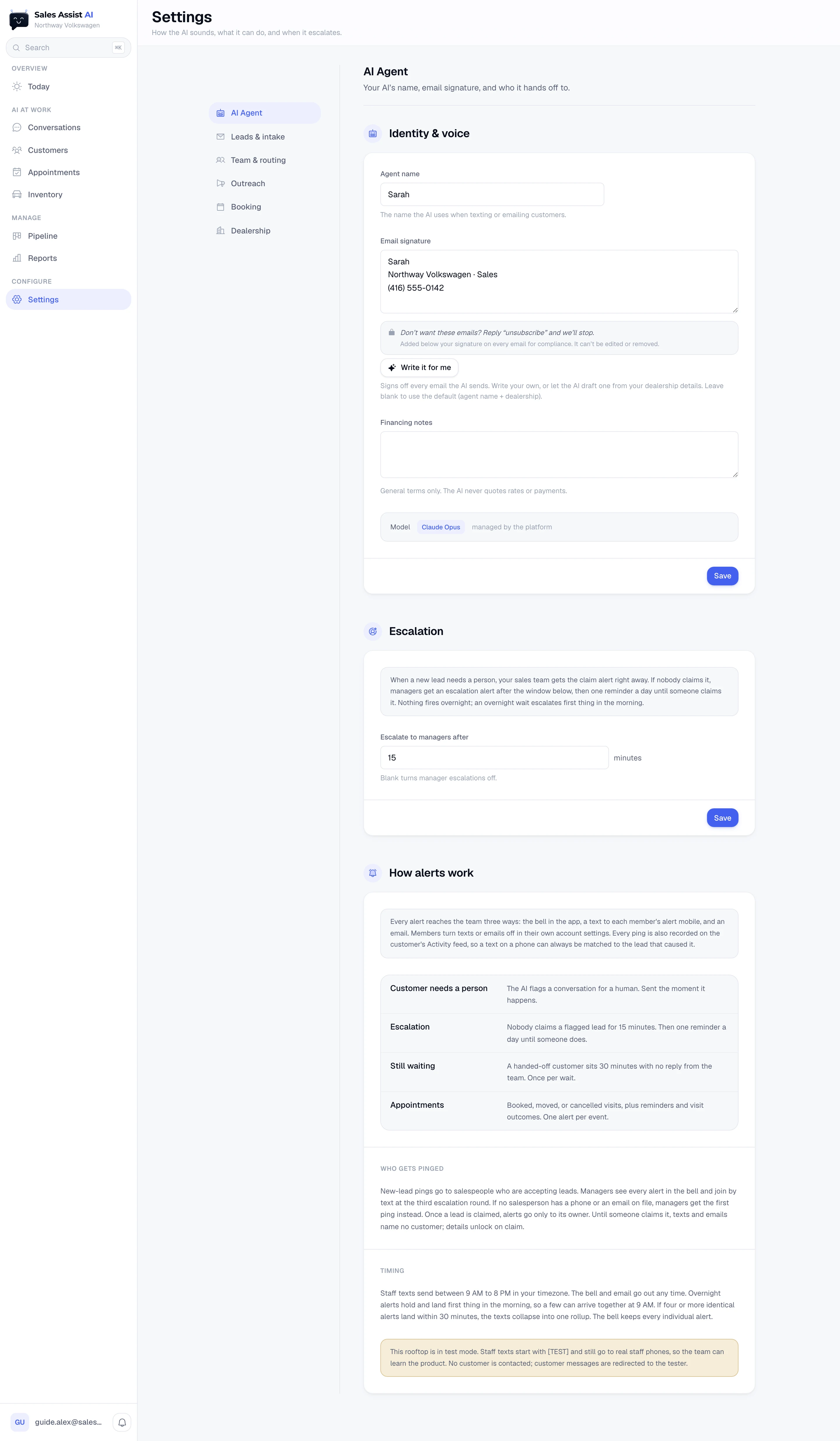
Identity & voice
- Agent name
- The name the AI uses when it texts or emails customers. For example, Sarah. Customers only ever see this name. Inside the app your team always sees "the AI", so nobody confuses it with a real person.
- Email signature
Signs off every email. Write your own, or press Write it for me and the AI drafts one from your dealership details. Leave it blank to use the default of agent name plus dealership.
Underneath, in a locked box: "Don't want these emails? Reply 'unsubscribe' and we'll stop." That line is added below your signature on every email for compliance. It cannot be edited or removed.
- Financing notes
- General terms only, for example which lenders you work with. The AI never quotes a rate or a payment, whatever you put here.
- Model
- Read-only. Says Claude Opus, managed by the platform.
Escalation
- Escalate to managers after
- In minutes, for example 15. When a lead needs a person, your sales team is alerted right away. If nobody claims it within this window, managers are alerted, then once a day until someone claims it. Leave it blank to turn manager escalations off. Nothing fires overnight; an overnight wait escalates first thing in the morning.
How alerts work
A read-only card explaining every alert the system sends, with the numbers from your own settings above. The short version is in Alerts and the bell.
Settings: Leads & intake
Where leads come in, and which departments the AI handles.
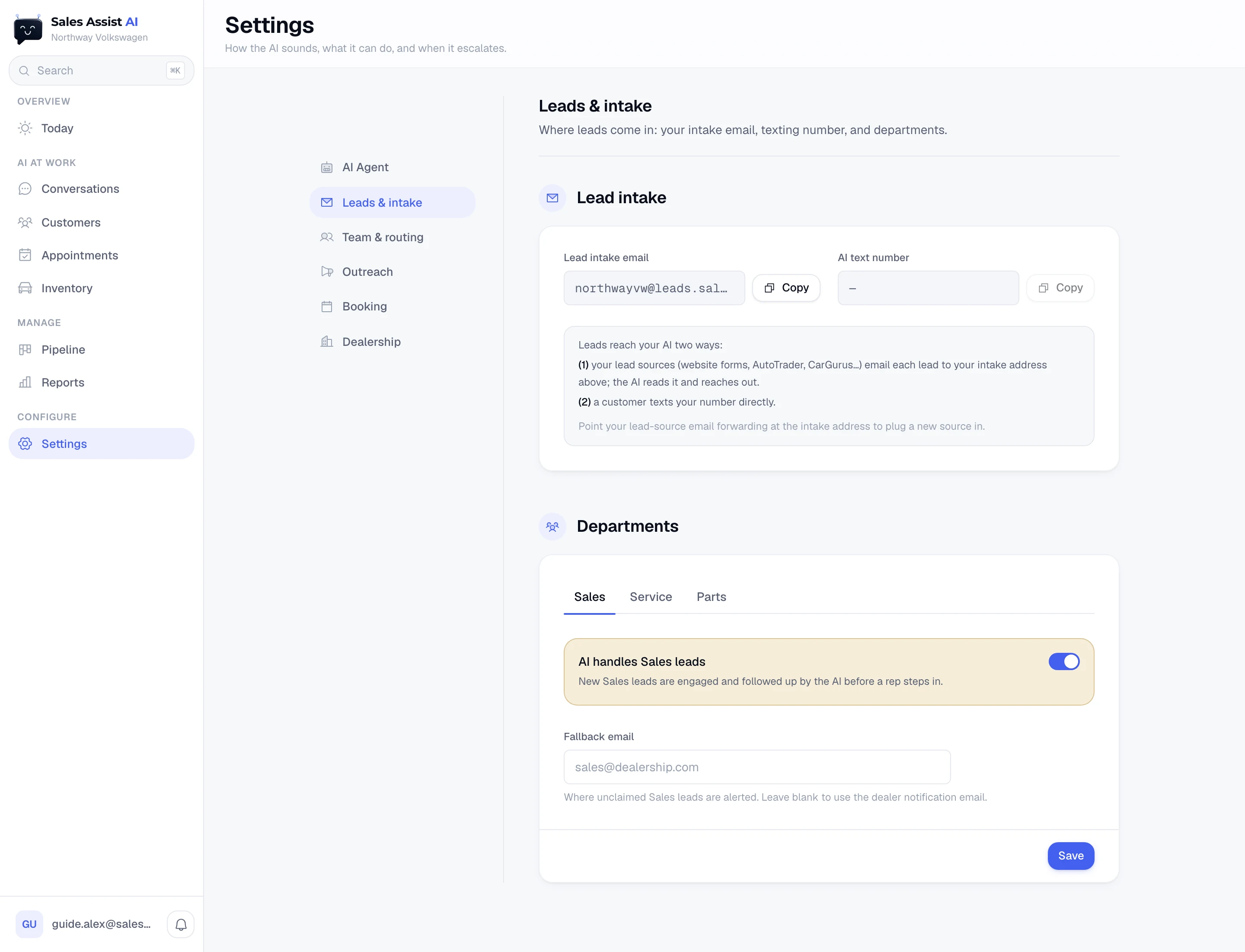
Lead intake
Two values, each with a copy button.
- Lead intake email
- Point your lead sources at this address. Website forms, AutoTrader, CarGurus and the rest email each lead here, the AI reads it and reaches out. To plug in a new source, forward that source's lead emails to this address. Nothing else is needed.
- AI text number
- The number the AI texts from, and the number customers can text directly. Put it on your website and your window stickers.
Departments
Three tabs: Sales, Service, Parts. Each has its own two settings.
- AI handles [department] leads
- On by default for Sales, off for Service and Parts. On means new leads for that department are answered and followed up by the AI before a rep steps in. Off means they go straight to that team's pool with no AI outreach.
- Fallback email
- Where unclaimed leads for that department are alerted. Leave it blank to use the dealership notification email. A typo here means those alerts silently go nowhere, so the form checks the address before saving.
Settings: Team & routing
Who the AI brings in, and how leads get owners.
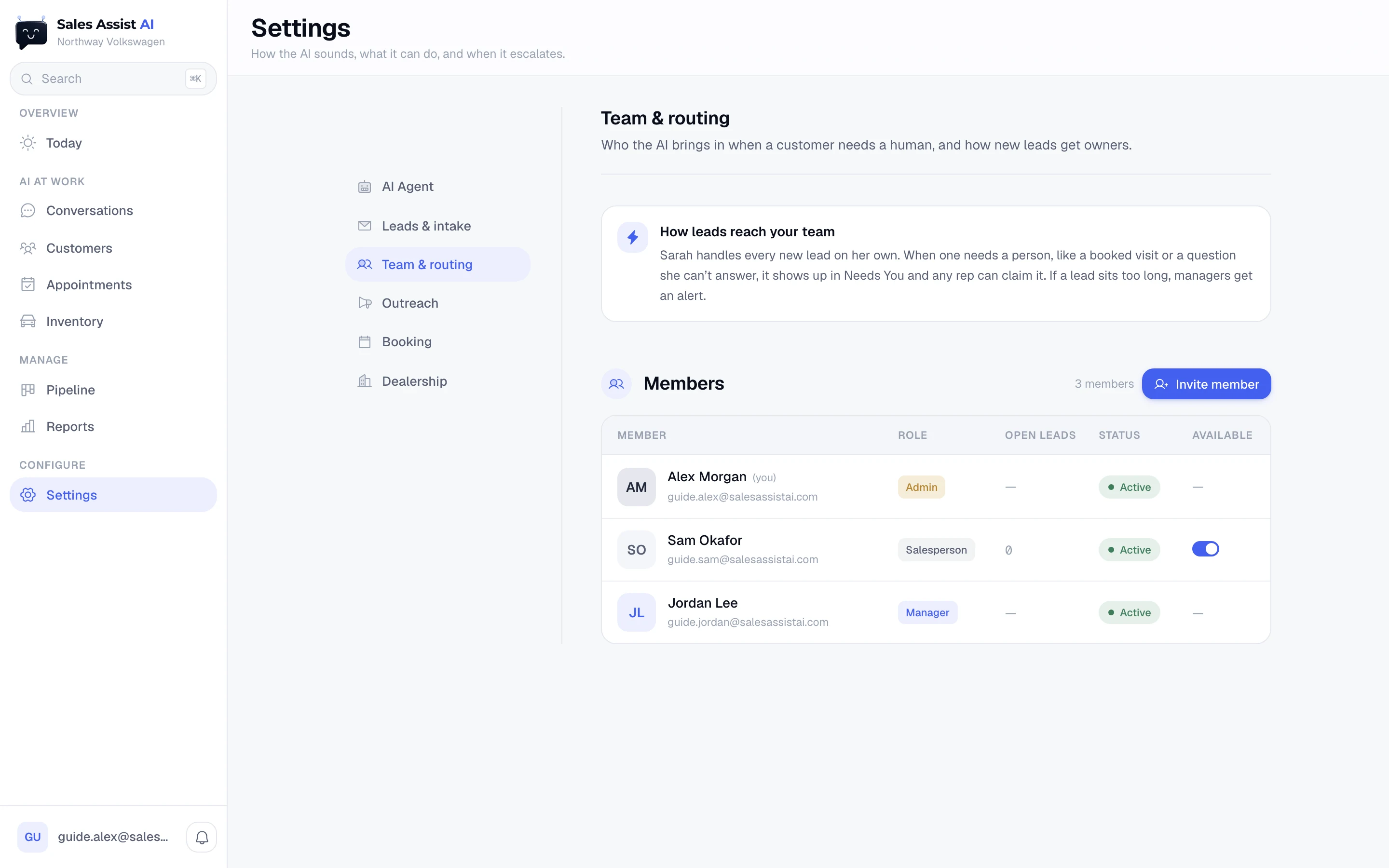
How leads reach your team
Nothing is auto-assigned. The AI handles every new lead on its own. When one needs a person, it lands in Needs You and any rep can claim it. If a lead sits too long, managers get an alert.
The roster
| Column | Meaning |
|---|---|
| Member | Name and email. Hasn't signed in yet under someone who has not accepted their invite. |
| Role | Admin, Manager, or Salesperson. |
| Open leads | How many leads that person currently owns. It moves as leads are claimed. |
| Status | Active, Invited, or Paused. |
| Available | A toggle on salespeople. Off means new leads stay in Needs You for someone else. |
Inviting someone
- Press Invite member.
- First and last name, both required. Customers hear this name. Appointment texts say "with Alex" once they claim a lead.
- Email address. This is their login.
- Mobile number, optional. This is where their alert texts go. They can add or change it later themselves.
- Role. Salesperson works their own leads. Manager adds the Pipeline board, Reports, and reassigning leads. Dealer admin is full control including Settings and team management, and only an admin can create another admin.
- Department. Leads for that department route to reps assigned to it.
- Send invite. They get an email from your store via Sales Assist AI with a Set your password button.
The member card
Click any row. It shows status, email, mobile, open leads, joined date, and last sign-in.
| Button | What it does |
|---|---|
| Edit details | First and last name, login email, mobile. Changing the email changes how they sign in. |
| Resend invite | Only on someone who has not signed in yet. Sends a fresh invite with a new code. Only the newest email's code works. |
| Send password reset | Emails them a reset link. |
| Accepting leads | Same toggle as the roster, for salespeople. |
| Role | Change it. It takes effect the next time they load the app. |
| Pause | They keep the login but lose access until you resume them. |
| Remove from team | Their open leads go back to Needs You. You can invite them again later with the same email. |
People can edit their own name, email and mobile from their own account settings. You cannot pause or remove yourself.
Settings: Outreach
When and how the AI reaches out first.
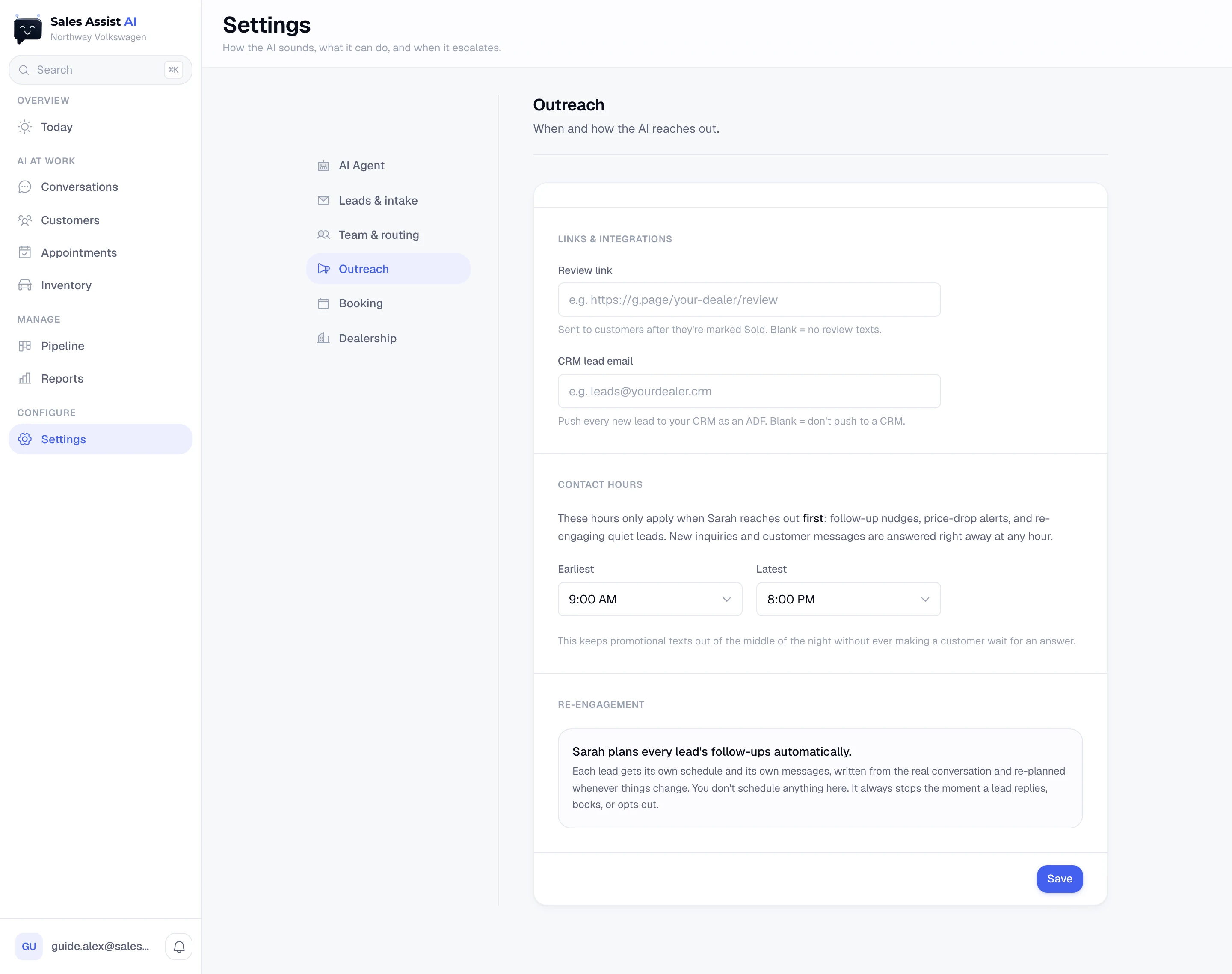
Links & integrations
- Review link
- Sent to customers after they are marked Sold. For example your Google review page. Blank means no review texts go out.
- CRM lead email
- Push every new lead to your CRM as an ADF. Blank means nothing is pushed.
Contact hours
Earliest and Latest. These apply only when the AI reaches out first: follow-ups, price-drop alerts, and re-engaging quiet leads. New inquiries and customer messages are answered right away at any hour. This keeps promotional texts out of the middle of the night without ever making a customer wait for an answer.
Re-engagement
The AI decides each lead's follow-up for itself, from the real conversation, and decides again whenever something changes. It always stops the moment a lead replies, books, or opts out. There is nothing to schedule here.
Going live is not here. Whether the AI can message real customers is owned by the platform and lives on your account record, not in your Settings. See Control plane.
Settings: Booking
The rules the AI books appointments by.
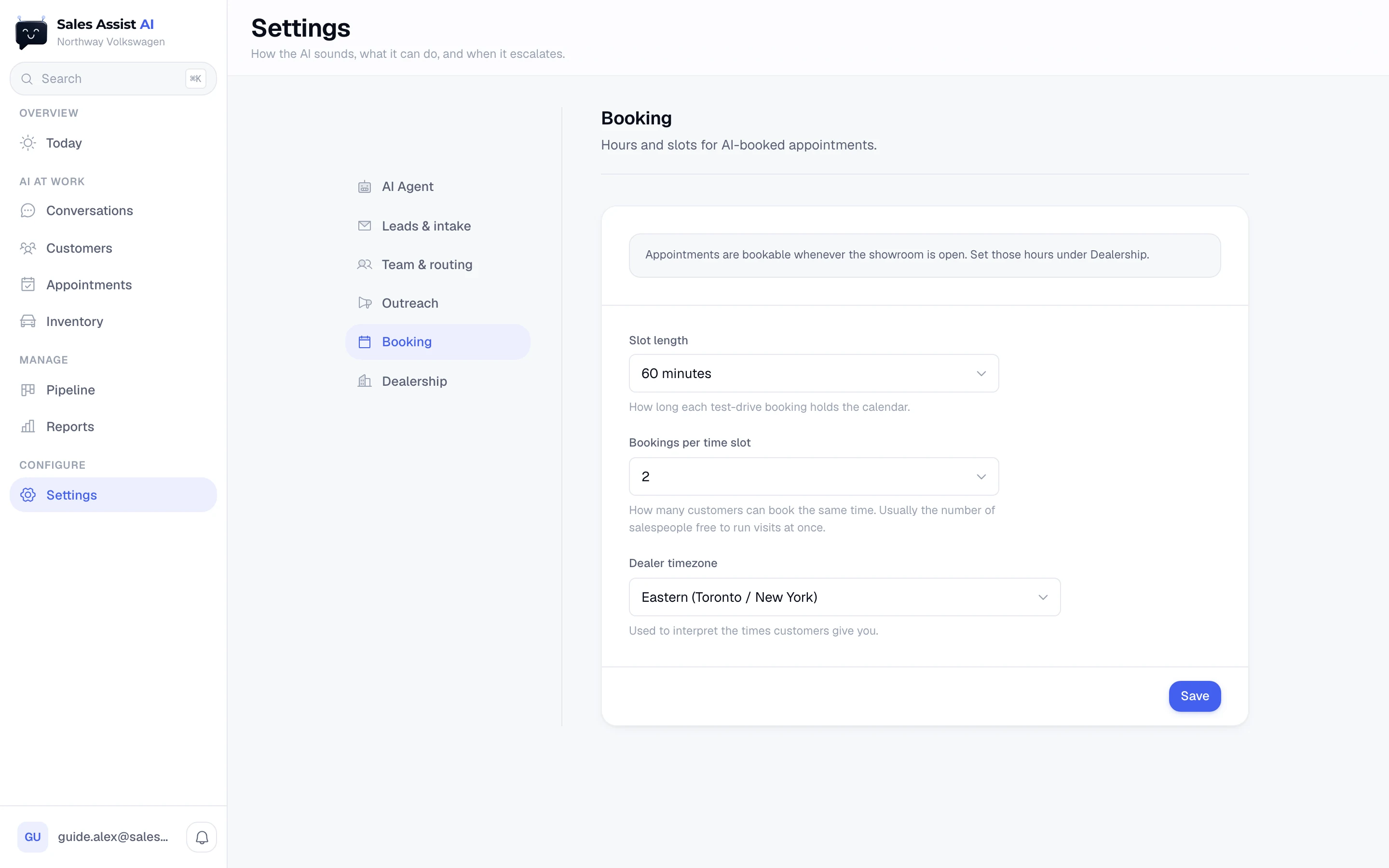
Appointments are bookable whenever the showroom is open. Those hours are set once, under Dealership. This screen covers what opening hours do not.
- Slot length
- How long each test-drive booking holds the calendar. That is also how long the AI tells a customer a visit takes.
- Bookings per time slot
- How many customers can book the same time. Usually the number of salespeople free to run visits at once. Set it to 1 for one visit at a time.
- Dealer timezone
- Used to read the times customers give you. "Saturday at 2" means 2 p.m. here.
Settings: Dealership
Your identity, your hours, your inventory feed.
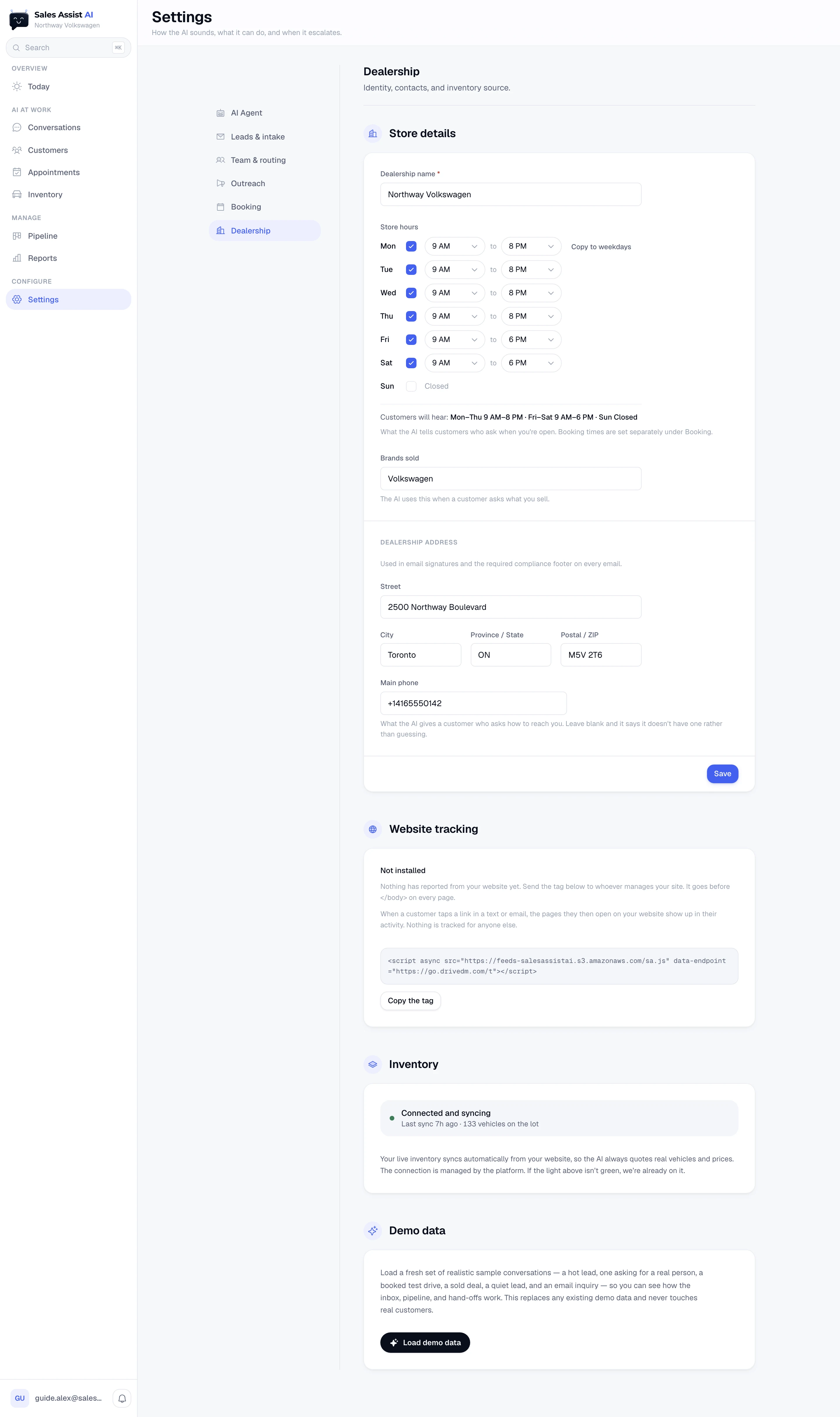
Store details
- Dealership name
- Required. Used everywhere the AI names your store.
- Store hours
A day-by-day editor. Tick a day open, pick the from and to times, or leave it unticked for Closed. Copy to weekdays on Monday fills Tuesday to Friday.
Underneath, a preview: "Customers will hear: Mon–Thu 9 AM–8 PM · Fri–Sat 9 AM–6 PM · Sun Closed." That sentence is what the AI actually says.
- Brands sold
- What the AI answers when a customer asks what you sell.
- Dealership address
- Street, city, province or state, postal or ZIP. Used in email signatures and the required compliance footer on every email.
- Main phone
- What the AI gives a customer who asks how to reach you. Leave it blank and the AI says it does not have one rather than guessing. A typo here is a wrong number in a text message, so the field checks it.
Website tracking
A tag for your website, with Copy the tag. Send it to whoever manages your site; it goes before </body> on every page. Once it reports, a customer who taps a link in a text or email and then browses your site shows those pages in their Activity. Nothing is tracked for anyone else. Until the first report lands the card says Not installed.
Inventory
A health light and the same sync detail as the Inventory screen: Connected and syncing · Last sync 6h ago · 133 vehicles on the lot. Your inventory syncs automatically from your website, so the AI quotes cars you have at the price you list. The connection is managed by the platform, so a red light is theirs to fix, not yours.
Demo data
Load demo data drops in a set of sample conversations in your own brand's cars: a hot lead, one asking for a real person, a booked test drive, a sold deal, a quiet lead, and an email inquiry. Good for training a new hire on a live screen. It replaces the existing samples and never touches real customers. The pictures in this guide were taken on exactly that data.
Alerts and the bell
Every alert reaches you three ways.
Every alert lands in the bell in the app, as a text to your alert mobile, and as an email. You can turn the text or the email off in your own account settings. The bell cannot be turned off, and it keeps every individual alert even when the texts collapse into a rollup.
The bell
Bottom of the sidebar on a desktop, top right on a phone. A red count means unread. The panel splits into Today and Earlier, and each row carries an icon for the kind of alert:
| Kind | Means |
|---|---|
| Customer needs a person | The AI flagged a thread. |
| Photos wanted | The AI asked the store for photos, a video, a document, or a call for a specific customer. It never offers a video on its own; it asks only when the customer did. |
| Assigned to you | A lead was routed to you. This one also pops up a message on screen. |
| Hot lead | A lead scored high enough to jump the queue. |
| Escalation | A flagged lead has gone unclaimed past the window. |
| Still waiting | A handed-off customer has waited 30 minutes on your team. |
| Booked / moved / cancelled | Appointment changes. |
| Visit reminder | A visit is coming up. |
| Visit outcome | A past visit needs marking. |
| Your lead is idle | A lead you own has had no activity for a while. |
Clicking a row opens that conversation and marks it read. Mark all read clears the count. Opening a thread from the inbox also clears any bell items pointing at it, so the badge and the row agree.
Who gets pinged, and when
- New-lead pings go to salespeople who are accepting leads. Managers see every alert in the bell and join by text at the third escalation round. If no salesperson has a phone or an email on file, managers get the first ping instead.
- Once a lead is claimed, alerts go only to its owner. Until someone claims it, texts and emails name no customer; details unlock on claim.
- Staff texts send inside your store's window, in your timezone. The bell and email go out any time. Overnight alerts hold and land first thing in the morning, so a few can arrive together.
- If four or more identical alerts land within 30 minutes, the texts collapse into one rollup. The bell keeps every individual alert.
Every alert is also recorded on the customer's Activity feed, so a text on your phone at 9 a.m. can be matched back to the lead that caused it.
Links from a text
The two screens that open when you tap an alert on your phone.
Claim link
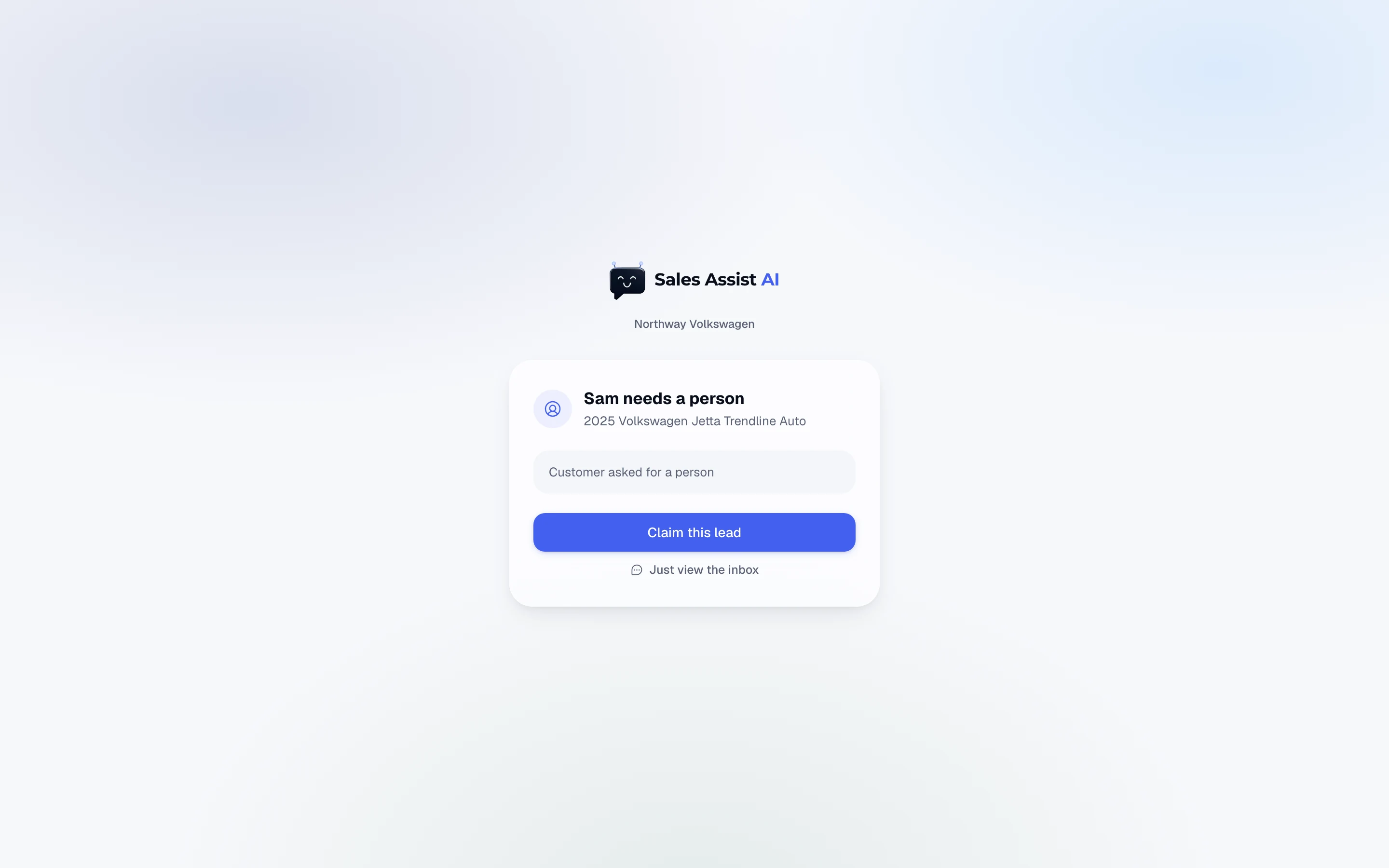
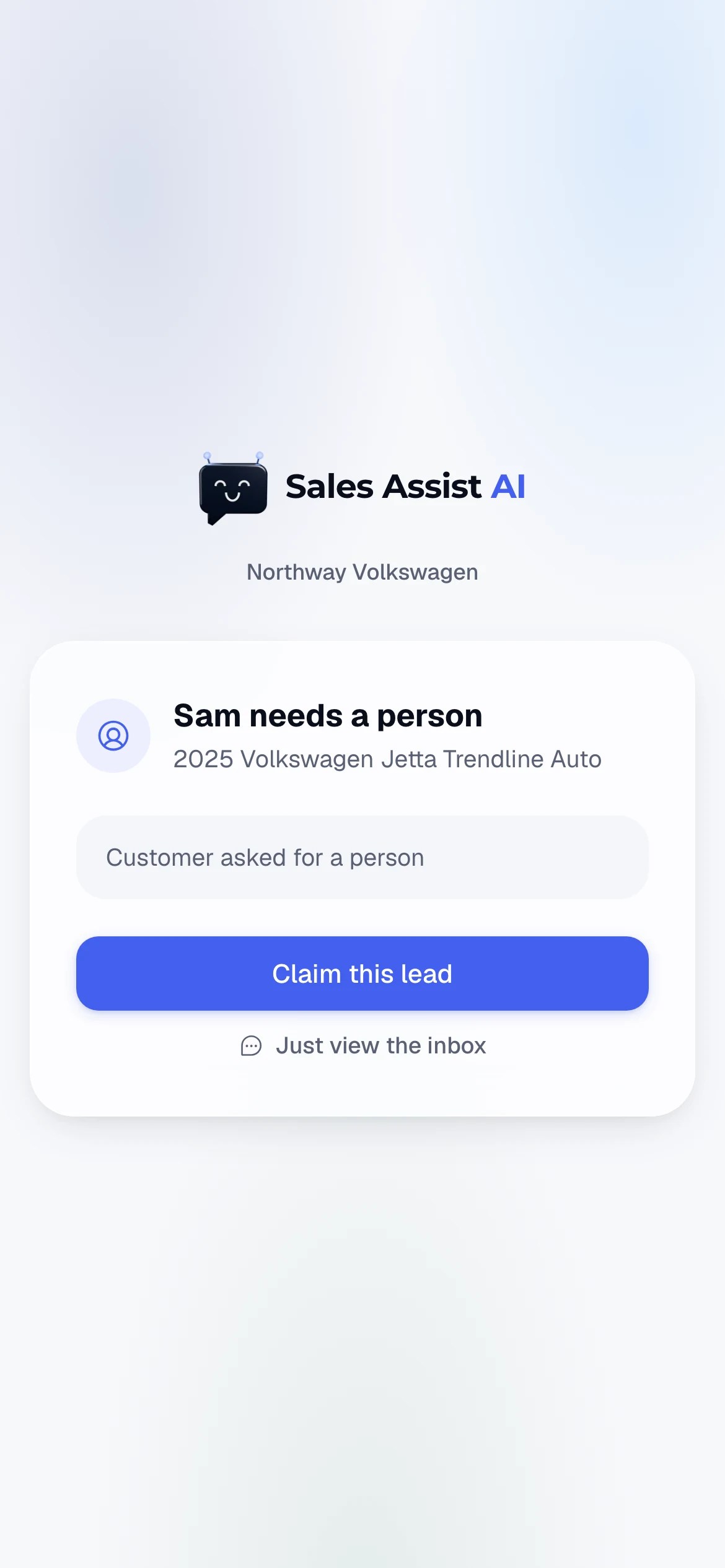
An alert text or email carries a link. Tapping it opens a small screen with just the decision on it.
- Managers and admins see who is waiting, the car, the AI's reason, and the appointment if the alert was a booking.
- Salespeople see only whether it is a new lead or a booked visit, and the slot. No name, no number, until it is theirs.
- One button: Claim this lead or Claim this appointment. Claiming drops you straight into the conversation as the owner.
- Just view the inbox opens the app without claiming anything.
- If a teammate got there first, it says so and offers the inbox instead.
Visit outcome link
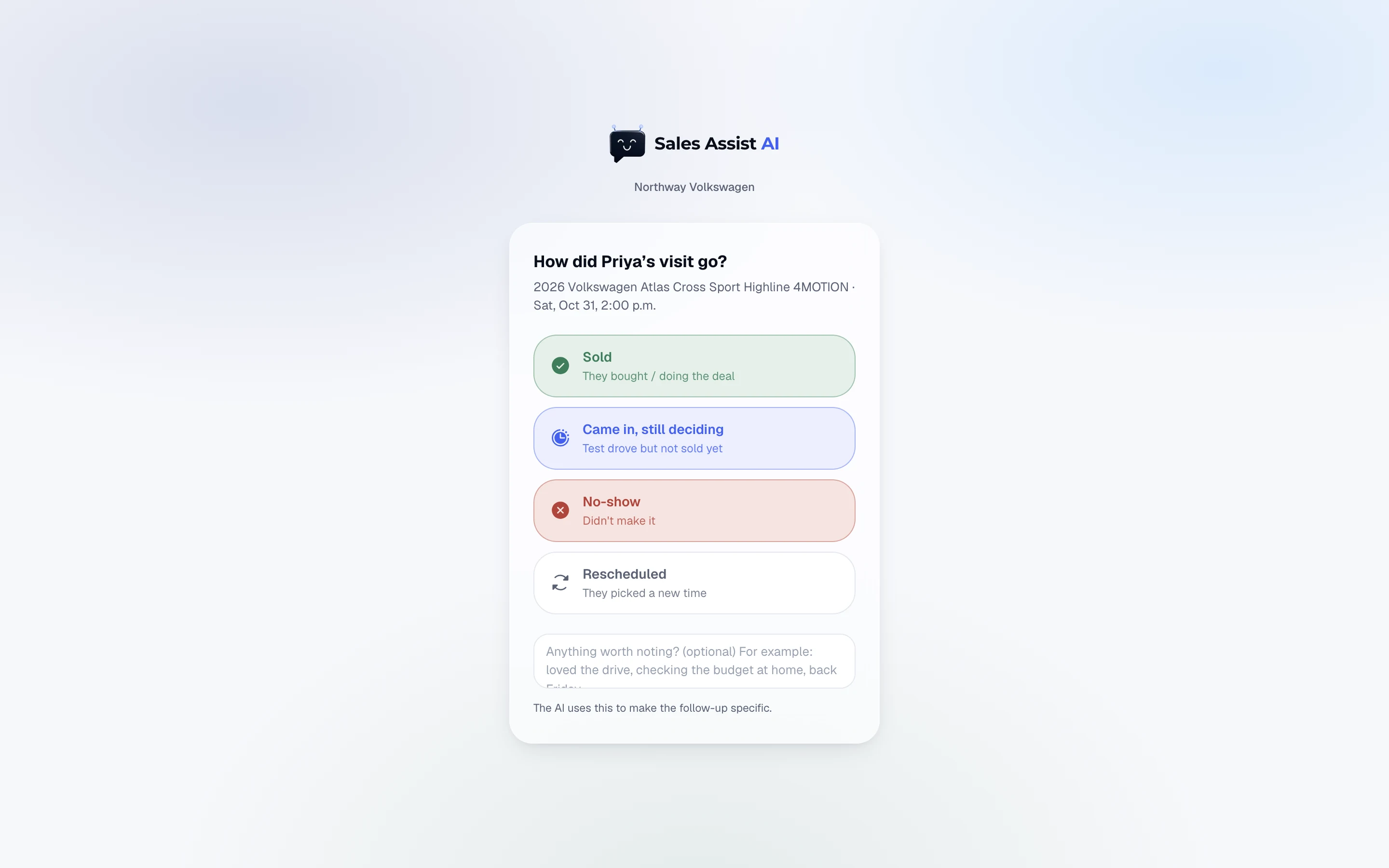
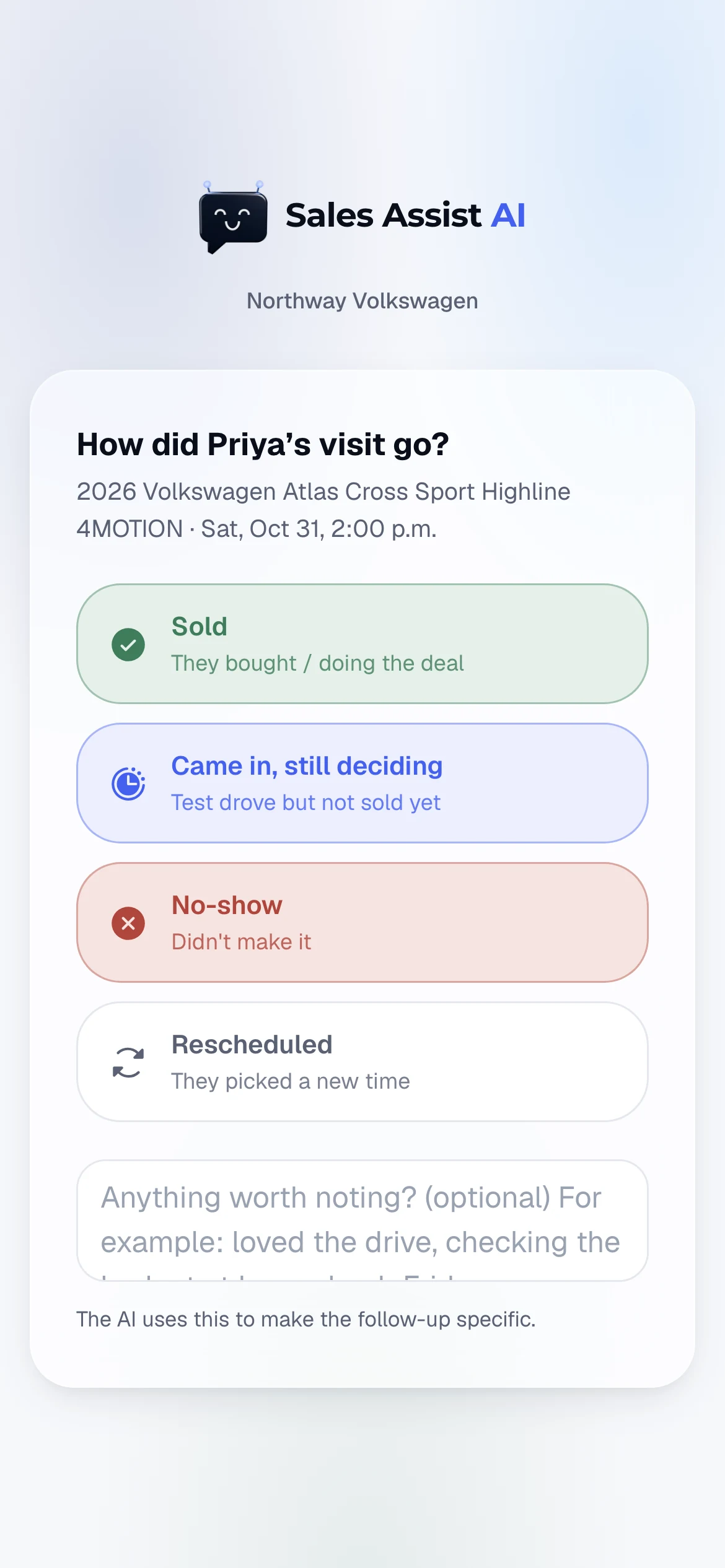
After a visit, the same kind of link asks one question: How did the visit go?
| Choice | What the AI does next |
|---|---|
| Sold | Sends a thank-you and asks for a review if a review link is set. |
| Came in, still deciding | Keeps working the lead toward the sale, with your note in hand. |
| No-show | Offers to rebook them, in its own words. |
| Rescheduled | Opens a time picker. It confirms the new time with the customer and reminds them before it. |
There is an optional note box: Anything worth noting? For example "loved the drive, checking the budget at home, back Friday". Whatever you write there goes into the thread and the AI uses it to make the follow-up specific. It never repeats your note back to the customer.
Your account
Your name, your alerts, your password. Everyone has this.
It opens as a dialog over whatever screen you are on: who you are signed in as and your role, then four cards.
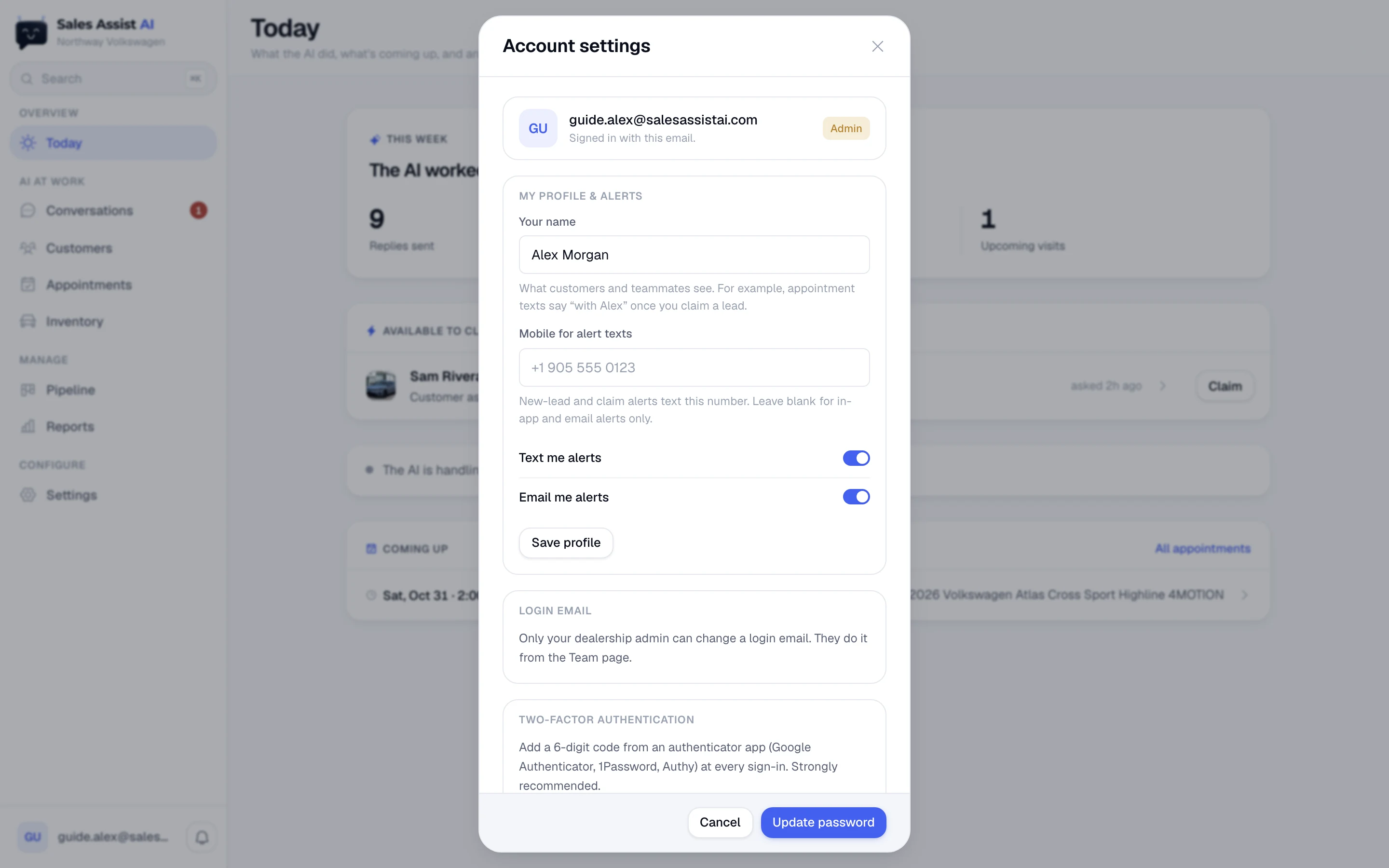
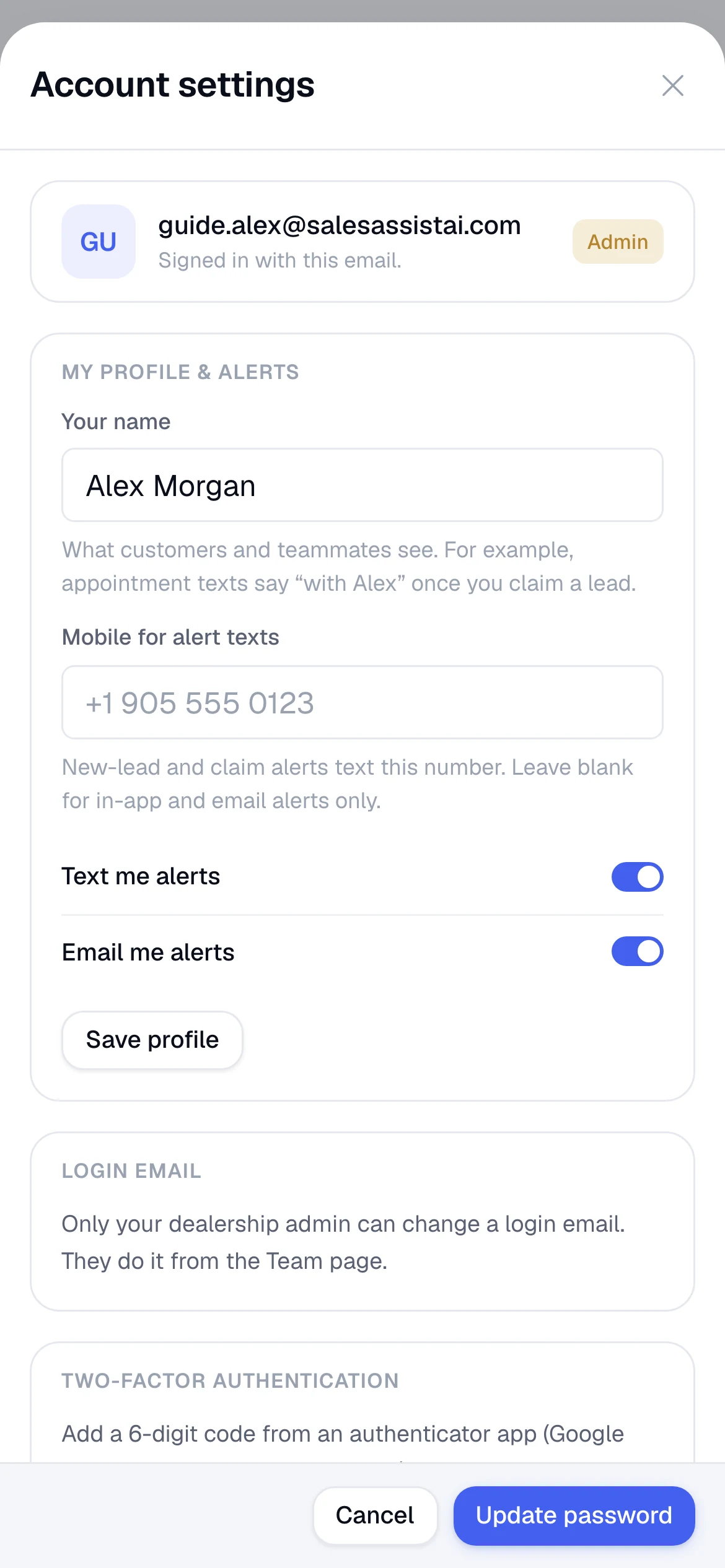
My profile & alerts
- Your name
- What customers and teammates see. Appointment texts say "with Alex" once you claim a lead.
- Mobile for alert texts
- New-lead and claim alerts text this number. Leave it blank for in-app and email alerts only.
- Text me alerts / Email me alerts
- Two toggles. Turning both off leaves you with the bell in the app.
Press Save profile. If you belong to more than one store, it saves to all of them.
Login email
Only your dealership admin can change a login email. They do it from the Team page, with Edit details on your member card.
My availability
Salespeople get a toggle for Accepting new leads. While it is off you are skipped when leads are handed out. Leads you already own stay yours.
Two-factor authentication
- Press Turn on two-factor.
- Scan the QR code with an authenticator app such as Google Authenticator, 1Password or Authy. There is a typed key underneath if you cannot scan.
- Enter the 6-digit code and press Verify & turn on.
From then on a code is required at every sign-in. Strongly recommended, and you can turn it off from the same card.
Change password
Current password, new password, confirm. The checklist shows the rules as you type. Your current password is verified first, so an open session left on a shared computer cannot be used to take the account over.
Control plane
The platform side. Dealerships, economics, staff.
Platform staff sign into a different workspace with three items: Dealers, Economics, Staff. From any dealership you can Open workspace and use the dealer app as support, with a banner across the top saying whose store you are in and Exit to control plane to leave.
Dealers
- Six usage numbers: dealers, agents active, MRR, conversations in 30 days, messages in 30 days, visits booked in 30 days. Under them, a 30-day message chart with the peak day called out.
- Directory: every dealership with its status, conversations in 7 days, and inventory count. Search it, page through it, and show or hide archived accounts.
- Statuses: Live, Test mode, Onboarding, Paused, Archived, Load-test rig. An onboarding row carries a go-live count like 4/7; click it to expand the checklist.
- Add dealer creates the account record and kicks off the first inventory sync.
A dealer's account page
Click any row. This page holds what the platform owns. Anything the dealership configures for itself stays in their Settings and is deliberately not mirrored here.
Service
- Texting number, with Provision or Change.
- Who the AI can message, with a Change link. This is the go-live switch, with three states: Test mode (every text and email rerouted to a number you set, tagged with who it was meant for), Replies only (the AI answers real customers who message first, but never starts a conversation), Live (the AI messages real customers first and follows up). Going live needs a second tick-box confirming it.
- Website provider and Account ID.
Compliance
- A2P 10DLC: the carrier registration that lets a US number text customers at all. Manage opens the form and the panel shows where it stands: business profile review, brand registration, campaign approval. Carrier reviews take hours to days.
- Branded email sending: each dealer sends from their own subdomain we own and manage, so one store's reputation cannot hurt another's. Until it verifies, email sends from the shared platform domain.
Inventory sync, Results, Billing, Account status
- Sync now runs a scrape and reports the car count and how long it took. Folded underneath: frequency, the pages the sync reads, the feed URLs, and the last eight runs.
- Reply rate, booking rate, and opt-out rate, each with a bar. The opt-out rate turns red above 3 percent.
- The plan, how it is collected, the renewal date, and whether the account counts toward MRR. Non-payment suspends sending without touching status, so paying restores service on its own.
- Pause stops the AI and closes the workspace for their staff, reversibly. Archive also drops it out of the directory and the numbers. Delete permanently is only available once archived, asks you to type the account ID, and has no undo.
Provisioning a new dealer
- Texting number. Pick one you already own, or buy a new one by area code. Buying is a real charge and asks you to confirm.
- Dealer admin. The email that gets the invite, and a department.
- Review & provision. This creates the webhooks and sends a real invite email. The results list shows each step with the error beside anything that failed so you can re-run it.
Economics and Staff
Economics is a per-dealer P&L over 7, 30 or 90 days: revenue, estimated cost, margin, and cost per booked visit, with the table broken into conversations, visits, AI cost and messaging cost. The costs are list-price estimates, not invoices. Staff holds platform operators and admins; only the owner can invite admins, and removing someone leaves their dealer memberships alone.
How the AI decides
The rules behind the states you see on screen.
When a customer replies
A reply does not fire an instant answer. The system waits about half a minute in case they are still typing, then the AI reads the whole thread, checks live inventory, and writes. Most answers land inside a minute. The typing dots and the AI is writing label show while that is happening.
The next move
There is no fixed drip. After every event on a lead, a reply, a send, a tapped link, a visit, news about their car, the AI reads that customer's whole file and decides one thing: send a message at a stated time for a stated reason, wait for a stated moment and decide again, or rest for a number of days. That decision is the What happens next line on the customer card and the AI · next date in the inbox.
It is told, as facts, what good stores do: around eight to twelve contacts in a lead's first 30 days, each with a different reason, daily in the first week and tapering after. It moves off that rhythm whenever this customer's file gives it a reason, and it says the reason on the card. A reply, a click, or news about their car wakes it early.
The limits the store sets
The AI chooses inside these. If it chooses outside them, the store moves the message.
- Your contact hours, in the customer's own time zone. A touch that would land at 2 a.m. waits for the morning.
- Three messages on the day a lead inquires, two a day after that, and a weekly ceiling that tightens as the lead ages. Replies never count against these. News about the customer's own car does not either.
- A time the AI promised the customer is kept, whatever else it decides.
- Consent has an end. Outreach stops at the line the law sets, with one quiet note a month after that at most.
Stop conditions
Outreach stops, immediately and without exception, when the customer opts out, is marked Sold or Lost, or a rep takes the thread. A reply or a booking does not stop the AI; it decides again from the new facts.
Guardrails
Two layers. The AI is instructed not to quote regulated numbers, and a separate check reads every drafted message before it sends. If a draft strays into payments, rates, taxes, fees, out-the-door totals, discounts or trade values, or promises what a person will do, it is stopped and the thread is flagged for a person. The AI can decline in words, which is not the same as quoting: "I can't text you monthly payments, but let's get you in and the desk will run real numbers" sends fine.
Judgment calls, such as tone or whether a question was asked too soon, are the AI's to make. The checks that refuse a message are about facts, money, law and times, never about style.
Opting out
A customer replying STOP, or "unsubscribe" to an email, ends all outreach. The carrier confirms the opt-out to them in its own words, and that confirmation shows in the thread. The lead shows as Lost and Opted out, its heat drops to zero, and the composer is disabled for your team as well. Nobody can message them, the AI or you. A customer who says "please stop" in their own words gets the same treatment, with a one-line acknowledgement from the AI.
If something looks wrong
The handful of things that account for most confusion.
| What you see | What it usually is |
|---|---|
| A screen looks stale or a fix you were told about is missing | Your tab is running an old version. Reload the page. Data refreshes itself all day, the app's code does not. |
| The red badge says 1 but the list looks empty | Check the filter chips. The badge counts what you can act on, and Active hides closed leads. |
| A lead is missing from Customers or the Pipeline | Both open on open leads. Pick Sold, Lost, or All stages in the stage control to see closed ones. |
| A thread says "Needs a reply" while the AI is clearly answering | Both are true for a few seconds. The customer spoke last until the reply lands. If it says AI is writing, wait. |
| A thread says AI · stuck | The AI's safety checks refused every version it wrote. Hover for the reason, then write the message yourself. |
| The AI would not answer a payment question | Expected. The AI never quotes payments, rates, taxes or fees. Answer it yourself or call them. |
| A car the AI mentioned has no photo in the text | That listing has no photo. Open it in Inventory to confirm, then fix it on your website. |
| Nobody got the alert | Check the person's mobile number and alert toggles in their member card, and the department's fallback email. |
| Several identical alerts arrived at 9 a.m. | Overnight alerts hold and land in the morning. Four or more identical ones collapse into a single rollup text. |
| A lead you claimed went back to the AI | A claimed thread that stays quiet for 48 hours resumes the AI's follow-ups. It is still your lead. |
| An invite email arrived with no working link | The temporary code is printed under the button. Type it into the sign-in form and the set-password screen opens. An admin can also Resend invite; only the newest code works. |
| A customer opted out but still shows a stage | Correct. Opted out is a flag across stages, not a stage. A booked or sold customer who texts STOP keeps their stage; use the Contacts filter to find everyone who opted out. |
Glossary
The words the app uses, and what each one means.
- Claim
- Taking ownership of a lead. Alerts about it then go only to you, and the customer gets your name.
- Step in
- Pausing the AI on one thread so you can reply yourself. Typing a reply does it automatically.
- Hand back
- Releasing your hold so the AI resumes.
- Handoff / flag
- The AI asking for a person, with a written reason.
- Needs you
- A flagged thread that you can act on: unclaimed, or yours.
- Needs a reply
- The customer spoke last and nobody has answered yet.
- Waiting on customer
- We spoke last and the AI has a next move. Most leads sit here.
- Quiet
- We spoke last, nothing is planned, and nobody is running it.
- Stage
- Where the lead is in buying: New, Working, Booked, Visited, Sold, Lost. Open means the first four.
- Heat / score
- Buying intent out of 100, worked out by the AI from the conversation. Nobody sets it by hand.
- Next move
- The AI's one decision for a lead: a message at a time for a reason, a wait until a moment, or a rest for some days.
- Store request
- The AI asking your team for photos, a video, a document, or a call for one customer.
- Test mode
- Every customer message is rerouted to a tester. No real customer is contacted.
- Intake email
- The address your lead sources forward to. Leads emailed here enter the app.
- A2P 10DLC
- The carrier registration that allows a US business number to text consumers. Without it, texts do not deliver.